Note
Access to this page requires authorization. You can try signing in or changing directories.
Access to this page requires authorization. You can try changing directories.
This article shows you how to view update status for an Azure Arc site. A site's update status reflects the status of the underlying resources. From the site status view, you can also find detailed status information for the supported resources.
Prerequisites
- An Azure subscription. If you don't have a service subscription, create a free trial account in Azure.
- Azure portal access.
- Internet connectivity.
- A resource group or subscription or service group in Azure with at least one resource for a site. For more information, see Supported resource types.
- A site created for the associated resource group or subscription or service group. If you don't have one, see Create and manage sites.
Update status colors and meanings
In the Azure portal, the color indicates the status:
- Green: Means Up to date.
- Blue: Means Update available.
- Yellow: Means Update in progress.
- Red: Means Needs attention.
This update status comes from the resources within each site and is provided by Azure Update Manager.
View update status
You can view update status for an Azure Arc site as a whole from the main page of the Azure Arc site manager (preview).
In the Azure portal, go to Azure Arc and select Site manager (preview) to open the site manager.
From the Azure Arc site manager, go to the Overview page.

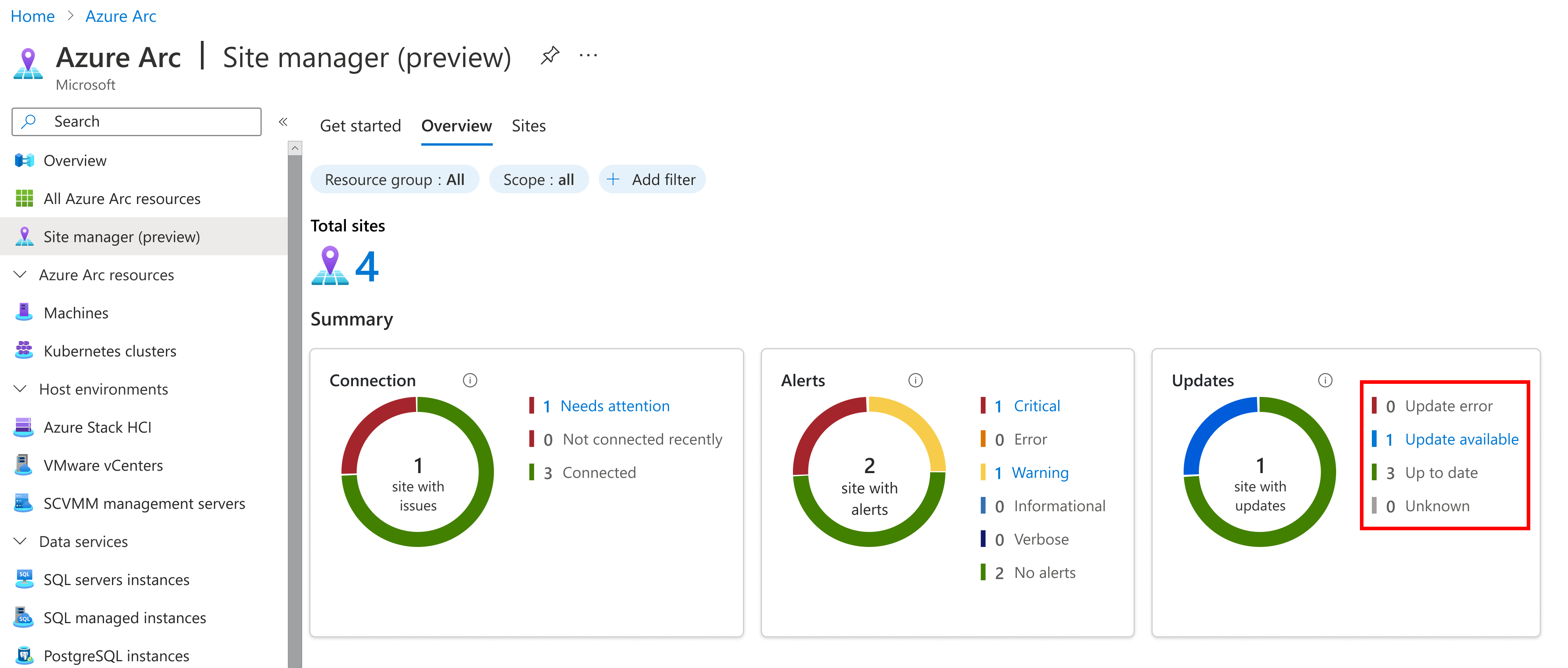
On the Overview page, you can view the summarized update statuses for your sites. This site-level status is aggregated from the statuses of its managed resources. In the following example, sites are shown with different statuses.
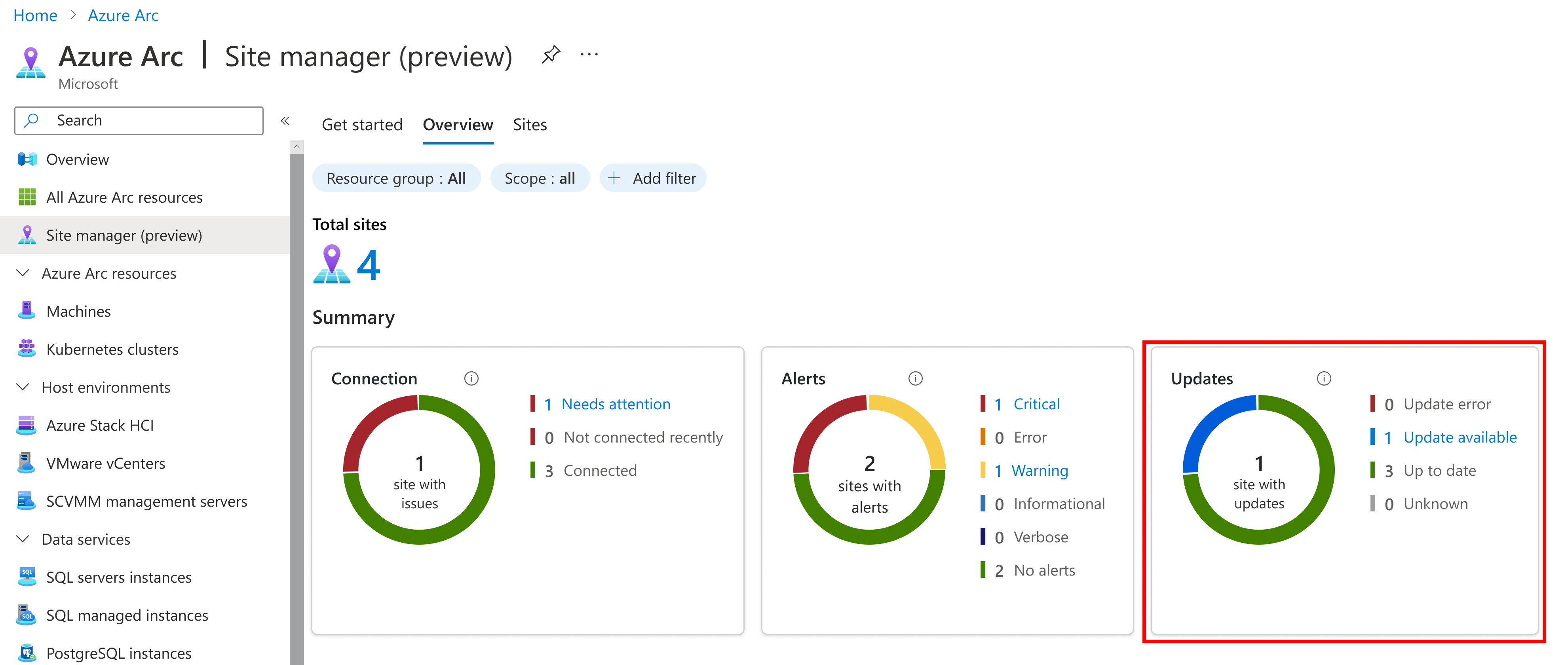
To understand which site has which status, select either the Sites tab or the status text to go to the Sites page.
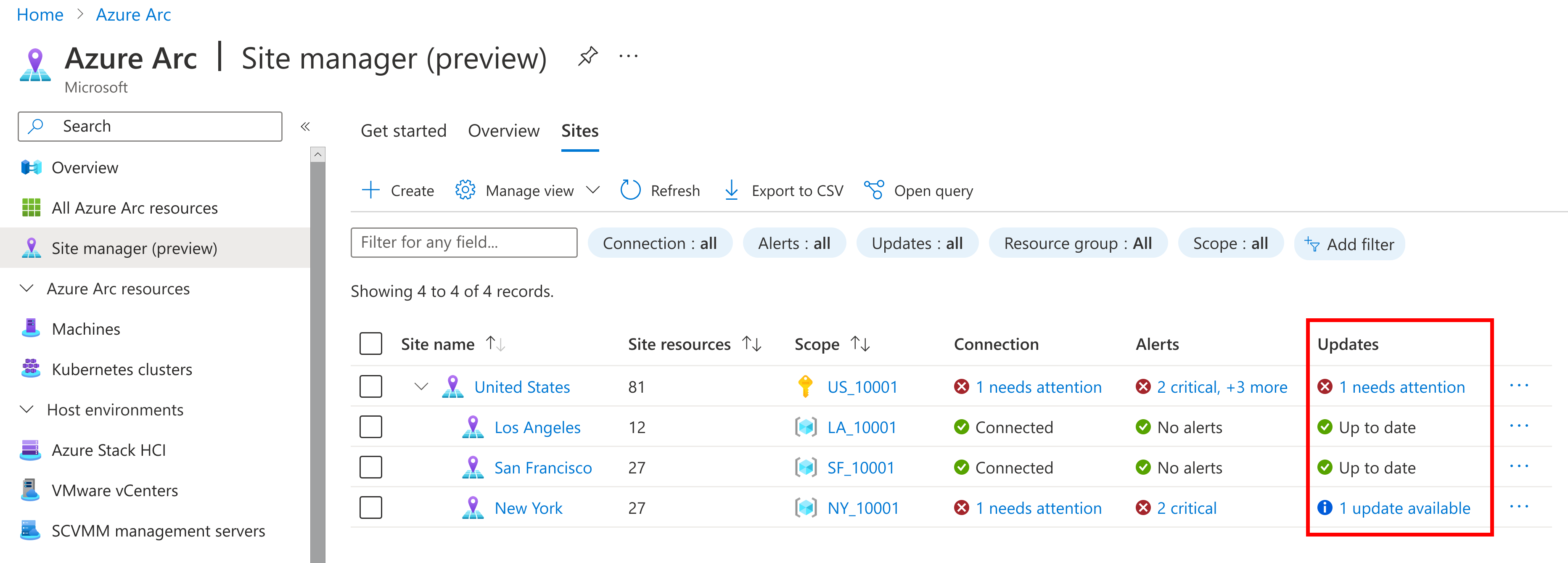
On the Sites page, you can view the top-level status for each site. This site-level status reflects the most significant resource-level status for the site.
Select the Needs attention link to view the resource details.
On the resource page for the site, you can view the update status for each resource within the site, including the resource responsible for the top-level most significant status.

