Note
Access to this page requires authorization. You can try signing in or changing directories.
Access to this page requires authorization. You can try changing directories.
This article explains how to collect logs on-demand for disconnected operations for Azure Local by using the PowerShell module. You learn how to provide logs for troubleshooting and support when Azure Local operates in disconnected mode.
About on-demand log collection
On-demand log collection involves manually gathering and sending diagnostic logs to Microsoft. These logs are stored in an Azure Data Explorer database that Microsoft Support can access to help investigate and resolve your reported issues. The collected diagnostic data is retained for up to 30 days and managed according to Microsoft's standard privacy practices.
Log collection helps diagnose and troubleshoot issues in disconnected operations for Azure Local. Use this feature to send logs to Microsoft Support. Logs include details about the disconnected operations environment, such as the management endpoint, integrated runtime, and other components. During log collection, errors might occur due to environmental or tool limitations.
Important
Before you use on-demand direct log collection, complete the prerequisites and set up observability with the Set-ApplianceObservabilityConfiguration cmdlet. If you skip these steps, you might see an error.
Prerequisites
Before you set up observability for your Azure Local appliance, make sure you:
- Deploy Disconnected Operations for Azure Local
- Set up observability for diagnostics and support
- Have sufficient disk space for logs:
- For typical log collection: At least 25 GB of free space.
- For larger log bundles, such appliance logs:
- Compressed logs can exceed 25 GB
- Uncompressed logs require more space.
- As a rule, keep at least twice the compressed log size available. For example:
- For a 10 GB compressed log bundle, keep at least 20 GB free.
- For a 25 GB compressed bundle, keep at least 50 GB free.
Note
Upload logs in small batches to reduce processing time and disk usage. Before you start, check your disk space to prevent failures because of low storage.
Workflow
To collect logs on-demand, follow these steps:
- Prerequisites
- Select a log collection method for your connectivity scenario
- Collect logs
- Monitor log collection
- Review logs locally or send them to Microsoft
Set up observability for diagnostics and support
We recommend that you set up observability to get telemetry and logs for your first deployment. This allows Azure Local Disconnected to connect to Azure through Arc registration and use a managed identity to upload logs, metrics, and telemetry from the appliance VM.
Note
Set up observability doesn't apply if you plan to run air-gapped, as telemetry and diagnostics require connectivity.
Here's a list of parameters needed:
- Azure resource group: Create a resource group in Azure for the appliance, such as azure-disconnectedoperations.
- Service Principal Name (SPN): Create an SPN that has
Azure Connected Machine Resource Administratorrights to the resource group. - Service Principal credentials: Get the service principal ID (appId) and secret (password).
- Subscription: Identify your Azure subscription.
- Tenant ID: Identify your tenant ID.
- Azure region: Specify the Azure region (location) for deployment.
- Required resource providers: Register these resource providers in your subscription:
- Microsoft.Compute (for Update Manager and extension upgrades)
- Microsoft.AzureArcData (if you use Arc-enabled SQL)
- Microsoft.HybridConnectivity
- Microsoft.GuestConfiguration
- Microsoft.HybridCompute
- Connectivity: Make sure your appliance can connect to Azure for telemetry and diagnostics.
Follow these steps to set up observability for diagnostics and support:
Sign in to Azure. Use Azure CLI or Azure Cloud Shell, and run this command:
az loginCreate a resource group using the same name you used in DeviceARMResourceURI. Run this command:
az group create -g <ResourceGroupName> -l <AzureRegion>Identify the active cloud. Run this command:
az cloud list -o tableGet the subscription and tenant IDs. Run this command:
az account showCreate a service principal. Replace <SubscriptionID> with your subscription ID, and run this command:
az ad sp create-for-rbac --name "<SPNName>" --role "Azure Connected Machine Resource Administrator" --scopes /subscriptions/<SubscriptionID>/resourceGroups/<ResourceGroupName>Example output:
{
  "appId": "<AppId>",
  "displayName": "<SPNName>",
  "password": "<RETRACTED>",
  "tenant": "<RETRACTED>"
}
Note
Use the appID as the Service Principal ID and password as the Service Principal Secret
Set the observability configuration. Change the values to match your environment details.
$observabilityConfiguration = New-ApplianceObservabilityConfiguration -ResourceGroupName "azure-disconnectedoperations" -TenantId "<TenantID>" -Location "<Location>" -SubscriptionId "<SubscriptionId>" -ServicePrincipalId "<AppId>" -ServicePrincipalSecret ("<Password>"|ConvertTo-SecureString -AsPlainText -Force)

Set-ApplianceObservabilityConfiguration -ObservabilityConfiguration $observabilityConfiguration
Note
If you want to set up observability as part of a bootstrap deployment, you can pass the
$observabilityConfigurationas a parameter toInstall-Applianceand skipSet-ApplianceObservabilityConfiguration. This simplifies deployment and helps you get logs and telemetry as part of the deployment.Check that observability is configured.
Get-ApplianceObservabilityConfiguration
Supported scenarios
The following on-demand scenarios are supported for log collection:
| Scenario for log collection | How to collect logs |
|---|---|
| Use on-demand direct log collection when an on-premises device with Azure Local disconnected operations connects to Azure and the management endpoint for disconnected operations is accessible. | To collect logs, run the Invoke-ApplianceLogCollection cmdlet. |
| Use on-demand indirect log collection when an on-premises device using disconnected operations for Azure Local can't connect to Azure but can still reach the management endpoint for disconnected operations. | Trigger log collection with the Invoke-AzureLocalDisconnectedLogCollection cmdlet.After you run the Invoke-AzureLocalDisconnectedLogCollection cmdlet, use the Send-DiagnosticData cmdlet to upload the appliance (control plane) logs. Use the Send-AzStackHciDiagnosticData cmdlet to upload Azure Local host node logs. |
| Use on-demand fallback log collection when the management endpoint for disconnected operations isn't accessible or the integrated runtime disconnected operations with Azure Local virtual machine (VM) is down. | Collect logs after you shut down the disconnected operations appliance VM, mount and unlock virtual hard disks (VHDs), and copy logs by using the Copy-DiagnosticData cmdlet from mounted VHDs into a local, user-defined location. For more information, see Appliance fallback log collection for disconnected operations. Use the Send-DiagnosticData cmdlet to manually send diagnostic data to Microsoft. |
For a list of unsupported features in disconnected mode, see Unsupported features in disconnected mode.
Important
Don’t run the Send-DiagnosticData cmdlet on Azure Local host nodes. The disconnected operations for Azure Local control plane manages these nodes. Run the cmdlet from a Windows machine with Azure connectivity, such as your laptop or desktop.
Disconnected operations for Azure Local when the appliance VM is connected to Azure
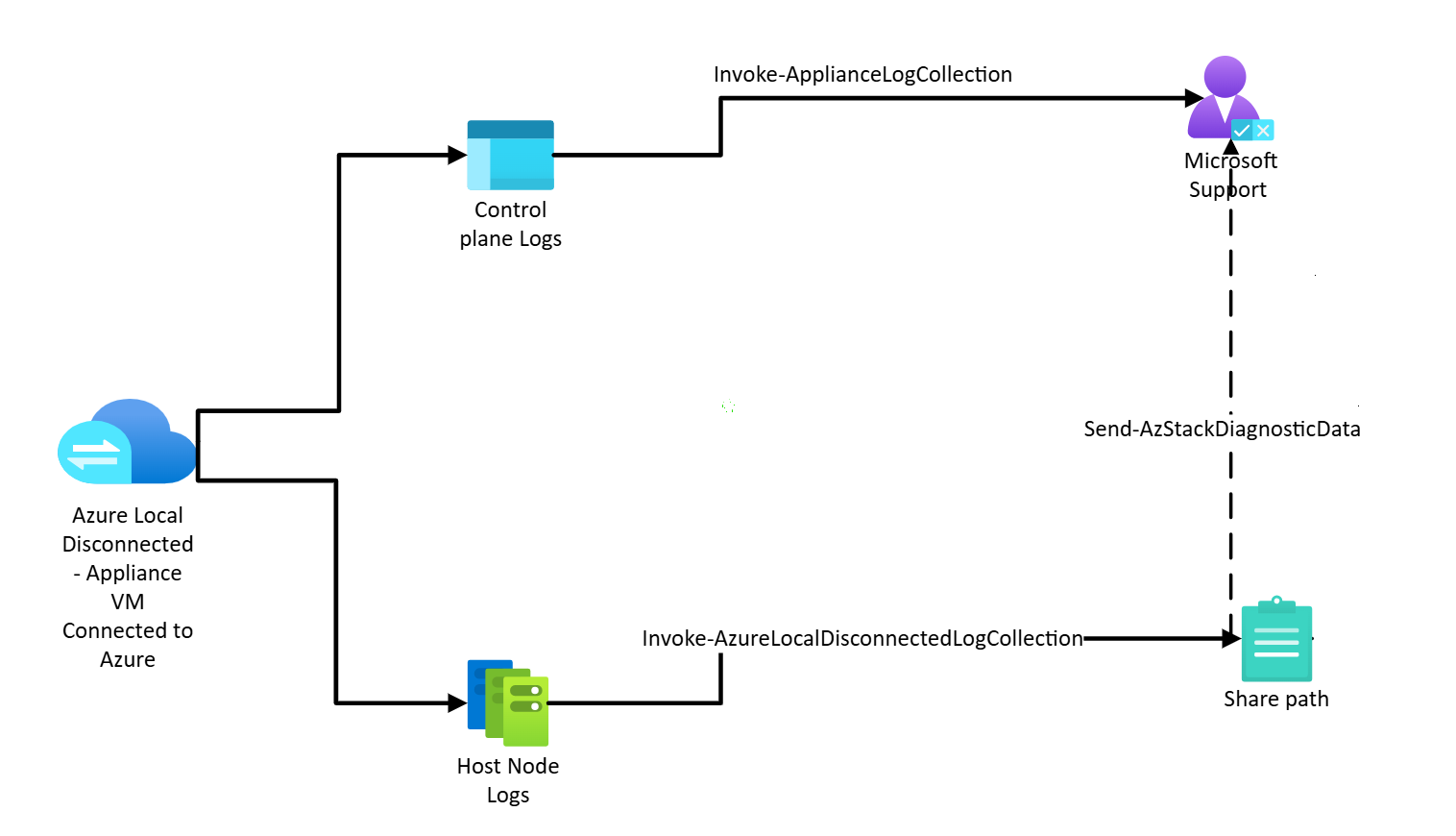
When the appliance VM is connected to Azure, send control plane logs directly using the Invoke-ApplianceLogCollection cmdlet. You don't need to save them locally. For host node logs, use the Invoke-AzureLocalDisconnectedLogCollection cmdlet to copy the logs, and then send them to Microsoft using the Send-AzStackDiagnosticData cmdlet.
The following diagram shows the key components for log collection in disconnected operations for Azure Local when the appliance VM is connected to Azure:
Note
For each deployment, the management IP address, management endpoint client certificate, and certificate password are different. Make sure you use the correct values for your deployment.
Before you collect logs in a disconnected operations scenario, make sure you:
Complete each of the Prerequisites.
Install the operations module if it's not installed. Use the
Import-Modulecmdlet and change the path to match your folder structure.Import-Module "<disconnected operations module folder path>\Azure.Local.DisconnectedOperations.psd1" -ForceExample output:
PS C:\Users\administrator.s46r2004\Documents> Import-Module "Q:\AzureLocalVHD\OperationsModule\Azure.Local.DisconnectedOperations.psd1" -Force
VERBOSE: [2025-03-26 19:49:12Z][Test-RunningRequirements] PSVersionTable:

Name                           Value
----                           -----
PSVersion                      5.1.26100.2161
PSEdition                      Desktop
PSCompatibleVersions           {1.0, 2.0, 3.0, 4.0...}
BuildVersion                   10.0.26100.2161
CLRVersion                     4.0.30319.42000
WSManStackVersion              3.0
PSRemotingProtocolVersion      2.3
SerializationVersion           1.1.0.1

VERBOSE: See Readme.md for directions on how to use this module.
Install the Azure Local module required for log collection.
Import-Module "<Azure Local module folder path>\AzureLocal.Orchestration.psd1" -ForceExample output:
PS C:\Users\administrator.s46r2004\Documents> Import-Module "Q:\AzureLocalVHD\Azurelocal.Orchestration\AzureLocal.Orchestration.psd1" -Force

CommandType        Name                                              Version        Source
-----------        ----                                              -------        ------
Function           Invoke-AzureLocalDisconnectedLogCollection        2602.1....    AzureLocal.Orchestration
Function           Invoke-AzureLocalEnvironmentValidation            2602.1....    AzureLocal.Orchestration
Use Deploy disconnected operations for Azure Local for your management endpoint.
Identify your management endpoint IP address.
Identify the management client certificate used to authenticate with the disconnected operations for Azure Local management endpoint.
Set up the management endpoint client context. Run this script:
# Replace with your actual values
$certPassword = Read-Host -AsSecureString "Management endpoint client certificate password"
$context = Set-DisconnectedOperationsClientContext -ManagementEndpointClientCertificatePath "<Management Endpoint Client Cert Path>" -ManagementEndpointClientCertificatePassword $certPassword -ManagementEndpointIpAddress "<Management Endpoint IP address>"
Collect control plane logs. Run this command on a system that can access the appliance VM (usually the same Hyper-V host):
Invoke-ApplianceLogCollectionThis command gathers logs from the appliance VM and sends them directly to Microsoft support.
Example:
$fromDate = (Get-Date).AddMinutes(-30)
$toDate = (Get-Date)
$operationId = Invoke-ApplianceLogCollection -FromDate $fromDate -ToDate $toDate
Example output:
PS G:\azurelocal\OperationsModule> $fromDate = (Get-Date).AddMinutes(-30)
PS G:\azurelocal\OperationsModule> $toDate = (Get-Date)
PS G:\azurelocal\OperationsModule> $operationId = Invoke-ApplianceLogCollection -FromDate $fromDate -ToDate $toDate
VERBOSE: [2025-11-13 18:33:26Z][Invoke-ApplianceLogCollection] Get health state with URI: https://169.254.53.25:9443/sysconfig/SystemReadiness
VERBOSE: [2025-11-13 18:33:26Z][Invoke-ScriptsWithRetry][Invoke-ApplianceLogCollection] Executing 'Get health state ...' with timeout 600 seconds ...
VERBOSE: [2025-11-13 18:33:26Z][Invoke-ScriptsWithRetry][Invoke-ApplianceLogCollection] [CHECK][Attempt 0] for task 'Get health state ...' ...
VERBOSE: [2025-11-13 18:33:56Z][Invoke-ScriptsWithRetry][Invoke-ApplianceLogCollection] Task 'Get health state ...' succeeded.
VERBOSE: [2025-11-13 18:33:56Z][Invoke-ScriptsWithRetry][Invoke-ApplianceLogCollection] Executing 'Get system configuration ...' with timeout 600 seconds ...
VERBOSE: [2025-11-13 18:33:56Z][Invoke-ScriptsWithRetry][Invoke-ApplianceLogCollection] [CHECK][Attempt 0] for task 'Get system configuration ...' ...
VERBOSE: [2025-11-13 18:34:37Z][Invoke-ScriptsWithRetry][Invoke-ApplianceLogCollection] Task 'Get system configuration ...' succeeded.
VERBOSE: [2025-11-13 18:34:37Z][Invoke-ApplianceLogCollection] Trigger log collections with parameters: https://169.254.53.25:9443/logs/logCollectionJob/default and body {
    "fromDate":  "2025-11-13T18:03:08.4868568Z",
    "toDate":  "2025-11-13T18:33:13.7369896Z"
}
VERBOSE: [2025-11-13 18:34:37Z][Invoke-ScriptsWithRetry][Invoke-ApplianceLogCollection] Executing 'Trigger log collection ...' with timeout 600 seconds ...
VERBOSE: [2025-11-13 18:34:37Z][Invoke-ScriptsWithRetry][Invoke-ApplianceLogCollection] [CHECK][Attempt 0] for task 'Trigger log collection ...' ...
VERBOSE: [2025-11-13 18:34:37Z][Invoke-ScriptsWithRetry][Invoke-ApplianceLogCollection] Task 'Trigger log collection ...' succeeded.
VERBOSE: [2025-11-13 18:34:37Z][Invoke-ApplianceLogCollection] Log collections trigger result: "d5cb5a24-7f35-4fdb-a0a5-f6dbab77a68c"
Collect host node logs.
Invoke-AzureLocalDisconnectedLogCollection -FromDate (Get-Date).AddHours(-2) `
-ToDate (Get-Date) `
-AzureLocalNodeNames @("ALNode01", "ALNode02", "ALNode03") `
-AzureLocalNodeCredential (Get-Credential -UserName "Admin" -Message "Enter Azure Local node admin credentials") `
-SaveToPath "\\fileserver\logshare\AzureLocalLogs" `
-ShareCredential (Get-Credential -UserName "fileuser" -Message "Enter SMB share credentials")
-SkipAldoLogCollection
This command collects host node logs, including system level and cluster level diagnostics. For more information, see Invoke-AzureLocalDisconnectedLogCollection.
Upload host node logs by using the standalone observability tool and running the
Send-AzStackHciDiagnosticDatacommand. For more information, see Get support for Azure Local deployment issues.
Disconnected operations for Azure Local when the appliance VM isn't connected to Azure
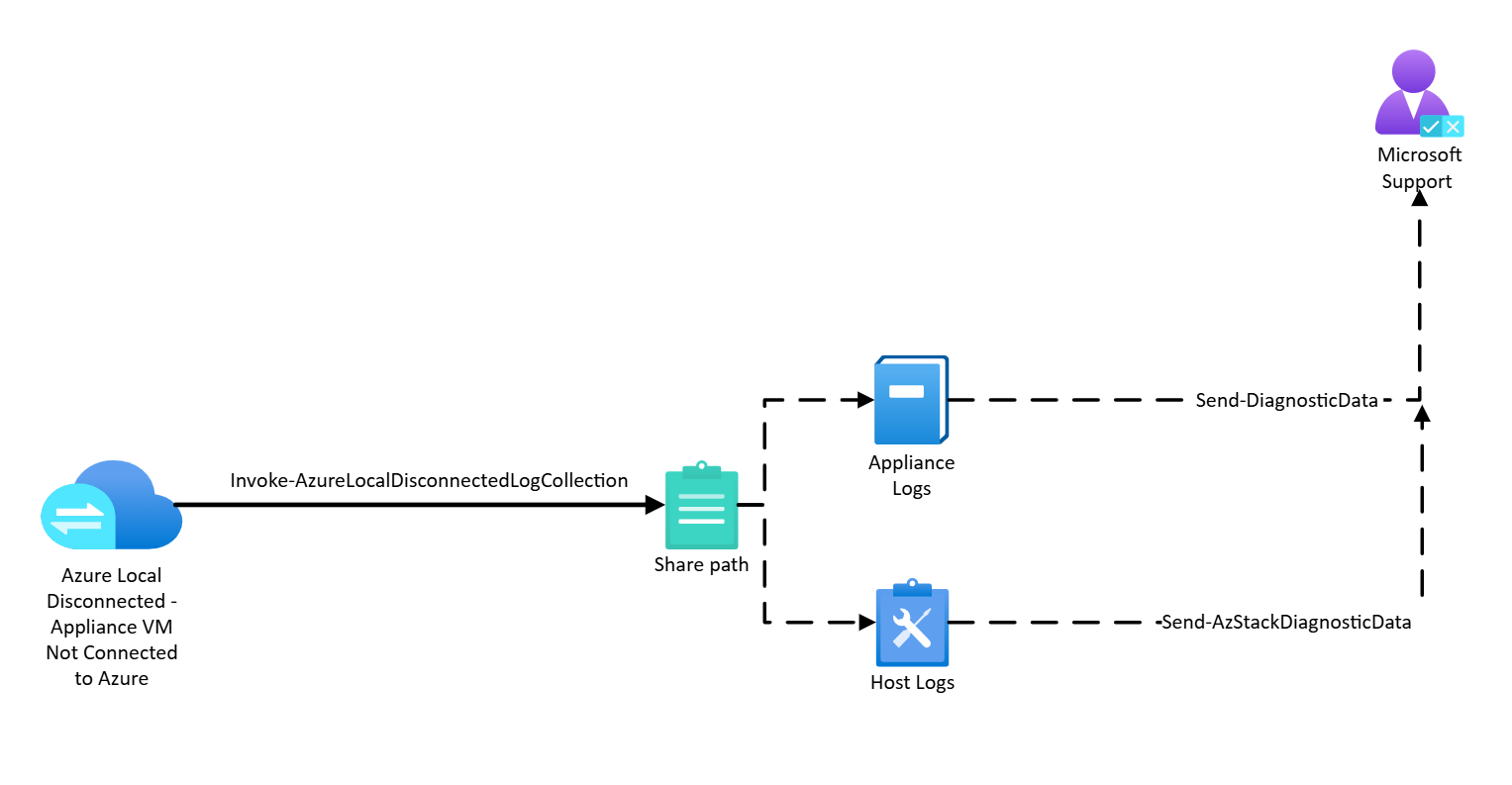
In disconnected operations environments, you can collect logs from the control plane (appliance) and host nodes, and then manually upload them with a standalone tool.
The following diagram shows key components for log collection in disconnected operations for Azure Local environments when the appliance VM isn't connected to Azure.
Before you collect logs in a disconnected operations scenario, make sure you:
Install the operations module if it's not installed. Use the
Import-Modulecmdlet and change the path to match your folder structure.# Replace with your actual values Import-Module "<disconnected operations module folder path>\Azure.Local.DisconnectedOperations.psd1" -ForceExample output:
PS C:\Users\administrator.s46r2004\Documents> Import-Module "Q:\AzureLocalVHD\OperationsModule\Azure.Local.DisconnectedOperations.psd1" -Force
VERBOSE: [2025-03-26 19:49:12Z][Test-RunningRequirements] PSVersionTable:

Name                           Value
----                           -----
PSVersion                      5.1.26100.2161
PSEdition                      Desktop
PSCompatibleVersions           {1.0, 2.0, 3.0, 4.0...}
BuildVersion                   10.0.26100.2161
CLRVersion                     4.0.30319.42000
WSManStackVersion              3.0
PSRemotingProtocolVersion      2.3
SerializationVersion           1.1.0.1

VERBOSE: See Readme.md for directions on how to use this module.
Install the Azure Local module required for log collection.
Import-Module "<Azure Local module folder path>\AzureLocal.Orchestration.psd1" -ForceExample output:
PS C:\Users\administrator.s46r2004\Documents> Import-Module "Q:\AzureLocalVHD\Azurelocal.Orchestration\AzureLocal.Orchestration.psd1" -Force

CommandType        Name                                              Version        Source
-----------        ----                                              -------        ------
Function           Invoke-AzureLocalDisconnectedLogCollection        2602.1....    AzureLocal.Orchestration
Function           Invoke-AzureLocalEnvironmentValidation            2602.1....    AzureLocal.Orchestration
Use Deploy disconnected operations for Azure Local for your management endpoint.
Identify your management endpoint IP address.
Identify the management client certificate used to authenticate with the disconnected operations for Azure Local management endpoint.
Set up the management endpoint client context. Run this script:
# Replace with your actual values
$certPassword = Read-Host -AsSecureString "Management endpoint client certificate password"
$context = Set-DisconnectedOperationsClientContext -ManagementEndpointClientCertificatePath "<Management Endpoint Client Cert Path>" -ManagementEndpointClientCertificatePassword $certPassword -ManagementEndpointIpAddress "<Management Endpoint IP address>"
Create a share. Run this command:
New-SMBShare -Name `<share-name>` -Path `<path-to-share>` -FullAccess Users -ChangeAccess 'Server Operators'Set up credentials for the share. Replace the placeholder text
<share-name>and<path-to-share>with your own values, then run this command:# Replace with your actual values $user = "<username>" $pass = "<password>" $sec=ConvertTo-SecureString -String $pass -AsPlainText -Force $shareCredential = New-Object System.Management.Automation.PSCredential ($user, $sec)Collect control plane and host node logs. Run this command on a system that can access the appliance VM (usually the same Hyper-V host):
Example:
#replace with your actual values
Invoke-AzureLocalDisconnectedLogCollection -FromDate (Get-Date).AddHours(-2) `
-ToDate (Get-Date) `
-AzureLocalNodeNames @("ALNode01", "ALNode02", "ALNode03") `
-AzureLocalNodeCredential (Get-Credential -UserName "Admin" -Message "Enter Azure Local node admin credentials") `
-SaveToPath "\\fileserver\logshare\AzureLocalLogs" `
-ShareCredential (Get-Credential -UserName "fileuser" -Message "Enter SMB share credentials")
This command also includes system level and cluster level diagnostics. For more information, see Invoke-AzureLocalDisconnectedLogCollection.
After collection, review the logs locally or upload them to Microsoft by using the standalone observability tool. There are product specific wrappers around Microsoft.AzureStack.Observability.Standalone.
When you collect logs using
Invoke-AzureLocalDisconnectedLogCollection, logs from the host nodes and appliance are saved to separate subfolders under the same<SaveToPath>location.Note
These cmdlets must be uploaded using different cmdlets.
Log locations and upload commands:
Appliance logs:
# Logs from disconnected operations appliance for Azure Local infrastructure

<SaveToPath>\ALDO
Upload logs collected from the appliance VM by using the
Send-DiagnosticDatacmdlet from the disconnected operations for Azure Local PowerShell module.Host node (cluster nodes) logs:
# Logs from Azure Local host nodes

<SaveToPath>\AzureLocal
Upload logs collected from the Azure Local host nodes by using the
Send-AzStackHciDiagnosticDatacmdlet. For more information, see Get support for Azure Local deployment issues.
Optional. If the
Send-DiagnosticDatacommand fails or is interrupted, use theClear-DiagnosticPipelinecmdlet.
Log collection methods
Direct collection (connected to Azure)
When the appliance can connect to Azure and the management endpoint is accessible, use the Invoke-ApplianceLogCollection cmdlet.
The cmdlet lets you specify a time range for log collection. Run this cmdlet from a host that has the required PowerShell module imported and that can access the appliance management endpoint.
For more information, see Disconnected operations for Azure Local when the appliance VM is connected to Azure.
Indirect collection (disconnected from Azure, endpoint accessible)
When the appliance can’t connect to Azure but can reach the management endpoint, use Invoke-AzureLocalDisconnectedLogCollection cmdlet. Then upload logs with the Send-DiagnosticData cmdlet.
For more information, see Disconnected operations for Azure Local when the appliance VM isn't connected to Azure.
Fallback collection (endpoint not accessible, appliance VM down)
When the management endpoint is unavailable or the appliance VM is offline:
- Shut down the appliance VM, mount and unlock VHDs, copy logs using
Copy-DiagnosticDatacmdlet. - Upload logs manually with
Send-DiagnosticDatacmdlet.
For more information on fallback collection, see Appliance fallback log collection for disconnected operations.
Invoke-AzureLocalDisconnectedLogCollection
When your VM appliance is connected, this command collects all logs from the host node. When disconnected, it collects logs from both the host node and VM appliance.
This cmdlet:
- Is available when the telemetry and diagnostics extension is installed.
- Provides detailed diagnostics data to help you troubleshoot issues.
Capabilities:
- Collects role-specific and supplementary logs, and optional Software Defined Data Center logs
- Filters logs by role, date range, or log type.
- Runs only on the node where you execute the command, and bypasses observability agents.
- Saves logs locally only when you use the
-SaveToPathparameter.- Appliance logs are saved to
<SaveToPath>\ALDO. - Host node logs are saved to
<SaveToPath>\AzureLocal.
- Appliance logs are saved to
- Uses the
SkipAldoLogCollectionparameter to collect logs only from Azure Local host nodes and skip the disconnected operations control plane. - Supports secure credentials to save logs to a network share.
Send-DiagnosticData
The Send-DiagnosticData cmdlet lets you send logs to Microsoft support through the standalone pipeline.
This cmdlet requires:
- Subscription details: ResourceGroupName, SubscriptionId, TenantId, and RegistrationRegion.
- Credentials: Either through manual sign-in or by providing the appropriate service principal and password.
- Automatically performs uninstallation and artifact cleanup upon success.
Review the Set up observability for diagnostics and support section for steps to create the resource group and service principal required to upload logs.
The standalone pipeline:
- Connects your host machine to Azure.
- Targets all logs in a folder you provided.
- Uploads them to Microsoft support.
- If the upload fails, the cmdlet tries up to three times and shows the results when finished.
Note
Run Send-DiagnosticData on a Windows machine connected to the internet.
- You can't run this cmdlet on Azure Local Hosts because they can't use Azure as the Arc control plane when disconnected operations are set up.
- When you run the cmdlet, the machine uses Arc registration to upload data to Microsoft support.
- RegistrationRegion is the same as Location in
ObservabilityConfiguration.
- RegistrationRegion is the same as Location in
Use this method when you can’t collect logs directly from the appliance VM, for example:
- The appliance VM is disconnected from Azure.
- The management endpoint isn’t accessible.
Send-DiagnosticData cmdlet examples
Here are some examples of how to use the Send-DiagnosticData cmdlet.
To import the module, run this command:
Import-Module "<disconnected operations module folder path>" -Force
Send-DiagnosticData -ResourceGroupName <String> -SubscriptionId <String> -TenantId <String> [-RegistrationWithDeviceCode] -RegistrationRegion <String> [-Cloud <String>] -DiagnosticLogPath <String> [-ObsRootFolderPath <String>] [-StampId <Guid>] [<CommonParameters>]
To sign in manually by using a device code, run this command:
Send-DiagnosticData -ResourceGroupName <String> -SubscriptionId <String> -TenantId <String> [-RegistrationWithDeviceCode] -RegistrationRegion <String> [-Cloud <String>] -DiagnosticLogPath <String> [-ObsRootFolderPath <String>] [-StampId <Guid>] [<CommonParameters>]To use service principal credentials, run this command:
Send-DiagnosticData -ResourceGroupName <String> -SubscriptionId <String> -TenantId <String> -RegistrationWithCredential <PSCredential> -RegistrationRegion <String> [-Cloud <String>] -DiagnosticLogPath <String> [-ObsRootFolderPath <String>] [-StampId <Guid>] [<CommonParameters>]
Clear-DiagnosticPipeline
If Send-DiagnosticData execution fails or is interrupted due to a partial installation, unclean setup, or Ctrl+C cancellation, use the Clear-DiagnosticPipeline cmdlet to clean up or remove the pipeline.
This cmdlet:
- Is required only when the automatic cleanup fails or is interrupted.
- Uses the same authentication method as the original
Send-DiagnosticDatacall for uninstallation.
Note
If you have an Arc for Server agent connected before running Send-DiagnosticData, use the -SkipArcForServer parameter to preserve your preexisting Arc connection.
Clear-DiagnosticPipeline cmdlet examples
Supported authentication methods:
Device code authentication:
Clear-DiagnosticPipeline `
    -SubscriptionId "xxxxxxxx-xxxx-xxxx-xxxx-xxxxxxxxxxxx" `
    -TenantId "xxxxxxxx-xxxx-xxxx-xxxx-xxxxxxxxxxxx"
PassThrough using existing Azure context:
Clear-DiagnosticPipeline -PassThroughService Principal Credentials:
Clear-DiagnosticPipeline -RegistrationWithCredential $credential
Available options:
Preserve preexisting Arc agent connection:
Clear-DiagnosticPipeline `
    -SubscriptionId "xxxxxxxx-xxxx-xxxx-xxxx-xxxxxxxxxxxx" `
    -TenantId "xxxxxxxx-xxxx-xxxx-xxxx-xxxxxxxxxxxx" `
    -SkipArcForServer
Skip uninstall and remove leftover artifacts. Authentication isn't needed because no uninstall is initiated:
Clear-DiagnosticPipeline -SkipUninstall
Monitor log collection
Use these commands to monitor log collection.
Get-ApplianceLogCollectionJobStatus
Check the status of the log collection job with this cmdlet.
Get-ApplianceLogCollectionJobStatus -OperationId $OperationId
Example output:
   PS C:\Users\administrator.s46r2004\Documents> Get-ApplianceLogCollectionJobStatus -OperationId $operationId
   VERBOSE: [2023-04-09 22:35:29Z] [Invoke-ScriptsWithRetry] Executing 'Get log collection job status ...' with timeout 600 seconds ...
   VERBOSE: [2023-04-09 22:35:29Z] [Invoke-ScriptsWithRetry] [CHECK] [Attempt 0] for task 'Get log collection job status ...' ...
   VERBOSE: [2023-04-09 22:35:29Z] [Invoke-ScriptsWithRetry] Task 'Get log collection job status ...' succeeded.

   StatusRecord
   @{Instance Id=<Instance Id>; State=Running; StartTime=0001-01-01T00:00:00; EndTime=0001-01-01T00:00:00}
Get-ApplianceLogCollectionHistory
Get log collection history with this cmdlet. The input parameter FromDate takes DateTime type, and sets the start time for the history search window. If you don't specify the FromDate, the cmdlet searches the last three hours.
Get-ApplianceLogCollectionHistory -FromDate ((Get-Date).AddHours(-5))
Example output:
PS G:\azurelocal\OperationsModule> Get-ApplianceLogCollectionHistory -FromDate ((Get-Date).AddHours(-5))
VERBOSE: [2025-10-17 05:16:14Z][Invoke-ScriptsWithRetry][Get-ApplianceLogCollectionHistory] Executing 'Get log collection job history ...' with timeout 600 seconds ...
VERBOSE: [2025-10-17 05:16:14Z][Invoke-ScriptsWithRetry][Get-ApplianceLogCollectionHistory] [CHECK][Attempt 0] for task 'Get log collection job history ...' ...
VERBOSE: [2025-10-17 05:16:14Z][Invoke-ScriptsWithRetry][Get-ApplianceLogCollectionHistory] Task 'Get log collection job history ...' succeeded.


Name              : b4cffa08-6eb8-4700-a29e-6b5f08824c87
OperationId       : b4cffa08-6eb8-4700-a29e-6b5f08824c87
CorrelationId     : aaaa0000-bb11-2222-33cc-444444dddddd
State             : Succeeded
CollectionTime    : 2025-10-17T01:13:00.273+00:00
CollectionEndTime : 2025-10-17T02:07:52.069+00:00
FromDate          : 2025-10-17T00:39:40.448+00:00
ToDate            : 2025-10-17T01:09:40.453+00:00
Distributed       : True
JobType           : OnDemand
StorageKind       : Azure
Reason            : User initiated
Error             : @{Code=0}
UploadDetails     : @{UploadStartTime=2025-10-17T01:13:00.273+00:00; UploadSizeInMb=6982; UploadNumberOfFiles=710}
Get-ApplianceInstanceConfiguration
Get the appliance instance configuration, including the stamp ID and resource ID (DeviceARMResourceUri), with this cmdlet.
$stampId = (Get-ApplianceInstanceConfiguration).StampId
Example output:
    PS G:\azurelocal\> Get-ApplianceInstanceConfiguration
    VERBOSE: [2025-08-06 00:00:35Z][Invoke-ScriptsWithRetry][Get-ApplianceInstanceConfiguration] Executing 'Retrieving system configuration ...' with timeout 300 seconds ...
    VERBOSE: [2025-08-06 00:00:35Z][Invoke-ScriptsWithRetry][Get-ApplianceInstanceConfiguration] [CHECK][Attempt 0] for task 'Retrieving system configuration ...' ...
    VERBOSE: [2025-08-06 00:00:35Z][`ScriptBlock`] Getting system configuration from https://</IP address>:9443/sysconfig/SystemConfiguration
    VERBOSE: [2025-08-06 00:00:35Z][Invoke-ScriptsWithRetry][Get-ApplianceInstanceConfiguration] Task 'Retrieving system configuration ...' succeeded.


    IsAutomaticUpdatePreparation :
    ExternalTimeServers          :
    IsTelemetryOptOut            : False
    ExternalDomainSuffix         : autonomous.cloud.private
    ImageVersion                 : 7.1064750419.18210
    IngressNICPrefixLength       : 24
    DeviceARMResourceUri         : /subscriptions/<Subcription ID>/resourceGroups/<Resource group>/providers/Microsoft.Edge/winfields/7dfd0b
    ConnectionIntent             : Connected
    StampId                      : <Stamp ID>
    IngressNICIPAddress          : 10.0.50.4
    DnsForwarderIpAddress        : 10.10.240.23
    IngressNICDefaultGateway     : 10.0.50.1
Security considerations
When you collect diagnostic logs in air-gapped environments, you should understand the security and privacy protections built into this process. The following considerations help ensure that your diagnostic data remains secure while still providing Microsoft with the information needed for effective support.
- In air-gapped environments, use this method to get and give diagnostic logs to Microsoft.
- Logs aren't automatically sent unless you clearly set them to be sent.
- Logs can be saved locally and reviewed before sharing.
- Logs can contain sensitive operational metadata, but they don't include personal data by default.
- Microsoft doesn't keep access to logs unless customers directly share them.
If your organization blocks the affected node from connecting directly to the internet, follow these steps:
- To store logs locally, use the
-SaveToPathoption. - Move the logs to a separate VM or system that can connect to the internet.
- To upload logs to Microsoft through secure support channels, use that system.
Common issues
Account format for indirect collection:
- Use Domain\Username when running
Invoke-AzureLocalDisconnectedLogCollection. - If you omit the domain or use an incorrect username, the copy operation to the share fails with an access-denied error.
- Use Domain\Username when running
Send-DiagnosticData execution:
- Must be run on a Windows machine that has direct internet access to Azure.
- Don't run on Arc-enabled systems or the appliance acting as the Arc control plane.
Copy-DiagnosicData execution:
- Must be run on the Hyper-V host that hosts your Azure Local disconnected VM.
Role requirements:
- The roles required vary by scenario.
- To determine the appropriate roles, use the
get-helpcmdlet or work with your support contact.
Improper execution of commands:
- Log collection fails if commands run from:
- Nodes that aren't part of the Azure Local host infrastructure.
- External machines (for example, personal laptops) that don't host the required appliance VMs on the same Hyper-V host.
- Log collection fails if commands run from:
Observability tool usage:
- Run the standalone observability tool on Windows Server.
- Unsupported environments require extra manual setup.
Unsupported features in disconnected mode
These features are unsupported in disconnected mode.
- Remote support.
- Portal-based log collection.
- Metrics and telemetry streaming.
Related content
- Learn how and when to Use appliance fallback log collection.
This feature is available only in Azure Local 2602 or later.