Note
Access to this page requires authorization. You can try signing in or changing directories.
Access to this page requires authorization. You can try changing directories.
In this quickstart, you containerize your project by using GitHub Copilot modernization.
To use container compute services like Azure Kubernetes Service and Azure Container Apps, you need to containerize your project by creating a Dockerfile and other related configuration files, and build container images. The GitHub Copilot modernization extension automates this containerization process.
Prerequisites
- A GitHub account with an active GitHub Copilot subscription under any plan.
- One of the following IDEs:
- The latest version of Visual Studio Code (version 1.106 or later) with the following extensions:
- GitHub Copilot in Visual Studio Code. For setup instructions, see Set up GitHub Copilot in Visual Studio Code. Be sure to sign in to your GitHub account within Visual Studio Code.
- GitHub Copilot modernization. Restart Visual Studio Code after installation.
- The latest version of IntelliJ IDEA (version 2023.3 or later) with the following plugins:
- GitHub Copilot (version 1.5.59 or later). Be sure to sign in to your GitHub account within IntelliJ IDEA.
- GitHub Copilot modernization. Restart IntelliJ IDEA after installation.
- The latest version of Visual Studio Code (version 1.106 or later) with the following extensions:
- Docker installed and running.
Containerize your project
Use the following steps to start the containerization process:
Make sure you have Docker installed and running.
In Visual Studio Code, open your migrated project.
In the Activity sidebar, open the GitHub Copilot modernization extension pane.
In the Tasks section, open Containerize Tasks and select Containerize Application.
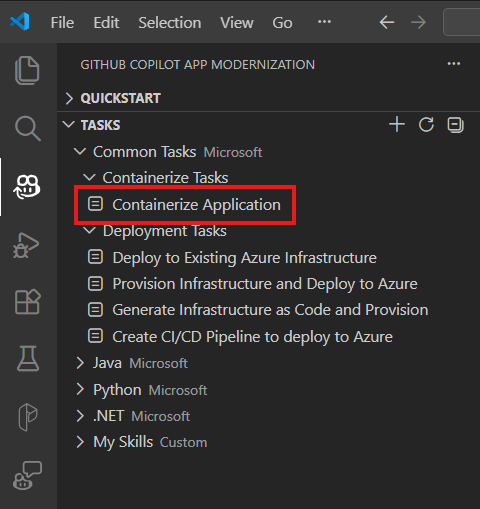
After you select the task, the Copilot chat window with Agent Mode opens automatically.
Select Continue repeatedly to confirm each tool action in the Copilot Chat window. The Copilot Agent uses various tools to facilitate containerization. Each tool's usage requires confirmation by selecting Continue.
Copilot typically goes through the following steps to containerize your project:
- Checks that Docker is installed and running.
- Checks that the application code is ready to run in a container.
- Creates a Dockerfile for each project.
- Builds Docker images for each project.
- Creates a summary of the containerization results.
Note
We recommend using Claude Sonnet 4 or later models for the best results.
It might take Copilot a few iterations to correct containerization errors.
Customize with your own prompts
The Containerize Application button sends a predefined prompt. For more control, type a custom prompt directly in the Copilot chat with Agent mode. This approach lets you specify containerization preferences for your project.
Tip
Example prompts for different scenarios:
"Containerize my application using a multi-stage Dockerfile to minimize the final image size"- optimize for production image size."Create a Dockerfile for my project using Eclipse Temurin 21 as the base image"- specify a particular base image."Containerize all modules in this multi-module project and create a docker-compose.yml for local testing"- handle multi-module projects with compose."Containerize my app and push the image to my Azure Container Registry: <acr-name>.azurecr.io"- build and push in one step.
See also
- GitHub Copilot modernization uses certain tools in containerization assist. For more information, see the containerization-assist repository on GitHub.
- GitHub Copilot modernization documentation