Note
Access to this page requires authorization. You can try signing in or changing directories.
Access to this page requires authorization. You can try changing directories.
Customer agreements contain predefined details to generate invoices. For more information, go to agreements overview. As agreement work increases, consider whether to add multiple incidents or multiple recurrences.
The following table shows the overall agreement setup flow to generate invoices before you start the detailed steps.
| Step | What you configure | Purpose |
|---|---|---|
| 1. Create or open an Agreement | Customer, date range, price list, general details | Establish the high‑level contract |
| 2. Add Agreement Invoice Setup (AIS) | Invoice recurrence, billing defaults | Generate invoices on a schedule |
| 3. Activate | Change status to Active | Start automated generation. Agreement Invoice Dates (Scheduled → Processed → Invoices) |
This article covers scenario to show how agreements can generate invoices.
Prerequisites
Before you set up a customer agreement, confirm that the following are already in place:
Invoice-related data is configured in your system, including accounts, products, services, and service tasks.
Agreement settings are configured. Consider specifying an agreement prefix and start number.
Designated owners of agreements, agreement booking setups, and agreement invoice setups can create invoices, invoice details, work orders, work order incidents, work order products, work order services, work order service tasks, resource requirements, and bookings.
Note
Before you create an agreement, set up a system user or team owner for the agreements. Agreement processes run with the permissions of their owners. If the owner leaves the organization, agreement processes fail and the agreement breaks. Learn more in Change the owner of an agreement.
Automatically generate invoices
Agreement invoices are used to automatically generate invoices for products and services. The invoices are generated at a defined recurrence and contain the same products at the same price each time. The invoices are generated and billed regardless of whether any work orders are performed or not. It's similar to how you might pay a monthly cell phone bill regardless of the number of phone calls or texts you send.
This scenario is independent of Set up agreements to automatically generate work orders. You can generate invoices without generating work orders.
In this scenario, a customer pays a field service organization a quarterly amount for a service plan.
Step 1: Create an agreement or select an existing one
You can add an agreement invoice to an existing agreement or add it to a new one. You can have an agreement with only an agreement invoice and no maintenance plan and even have multiple invoices for a single agreement.
In this example, quarterly invoices are added to the existing agreement.
From the agreement, select Invoice Setup > Add New Agreement Invoice Setup.
Tip
You might need to select the vertical ellipsis ⋮ before selecting New Agreement Invoice Setup.
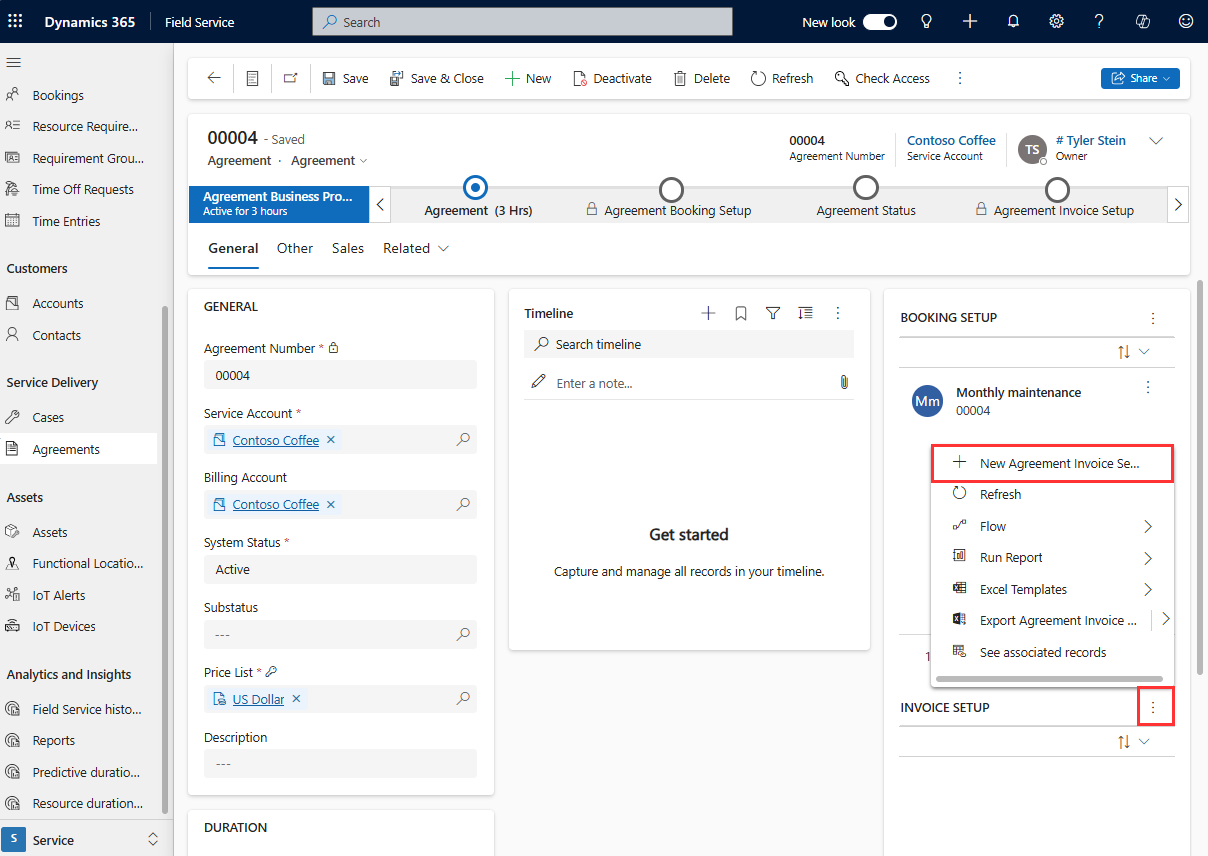
Enter a name for the service agreement and select Save.
Step 2: Set up invoice recurrence and products
Select Invoice Products and New Agreement Invoice Product.
Add the products you would like to bill the customer for regularly and select Save. The price of the invoice products is derived from the price list on the agreement.
Note
Invoice products can only be products where Field Service Product Type is set to Inventory or Non-inventory. Service type products can't be added.
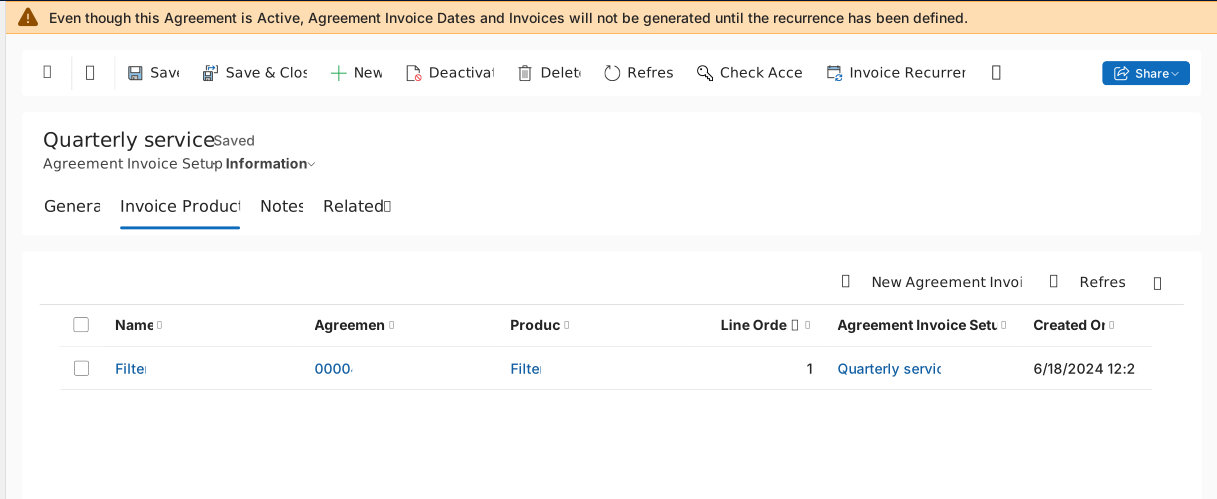
Select Invoice Recurrence in the command bar at the top.
Enter the recurrence information. To set up quarterly, select:
- Repeat: Monthly
- Repeat by: Day of the month
- Every specified month(s): 3
Select OK, then Save.
Step 3: Activate invoice recurrence and view invoices
Because this agreement is already active, the invoice dates generate after a short time but not immediately. If you added an agreement invoice setup to a new agreement or an existing one that has an Estimate status, then activate the agreement.
To view the invoice dates, select Related > Invoice Dates. Initially, all generated invoice dates have an Invoice status of Scheduled. Once they each generate the invoice, their status changes to Processed.

You can't manually generate agreement invoices like you can with agreement work orders.
Note
Invoices generate in advance based on the value you set for the Generate Agreement Invoices X Days in Advance field in Field Service Settings under the Agreement section. The invoice due date is set based on your recurring invoice setup but the system creates it X days in advance. If Generate Agreement Invoices X Days in Advance has no value, the system creates the invoice on the invoice date set in the Record Generation Timing field of the agreement and in the Field Service settings.