Note
Access to this page requires authorization. You can try signing in or changing directories.
Access to this page requires authorization. You can try changing directories.
Note
Community interest groups have now moved from Yammer to Microsoft Viva Engage. To join a Viva Engage community and take part in the latest discussions, fill out the Request access to Finance and Operations Viva Engage Community form and choose the community you want to join.
This article describes the various elements that make up a workflow.
A workflow consists of elements. The sections that follow describe each type of element.
Tasks
A task is a unit of work that must be performed. You can add two types of tasks to a workflow: manual tasks and automated tasks.
Manual task
A manual task is a unit of work that a user must perform. For example, an expense report workflow can have manual tasks that require the assigned users to complete the following actions:
- Review the receipts that are submitted together with an expense report.
- Call an employee's manager.
Automated task
An automated task is a unit of work that the system performs. No human interaction is required. For example, a sales order workflow can have automated tasks that require the system to complete the following actions:
- Perform a credit check.
- Create a customer record for the customer, if a record doesn't already exist.
Approval processes
An approval process is a process that consists of separate steps. At each approval step, the user can perform the following actions:
- Approve the document.
- Reject the document.
- Request a change to the document.
- Assign the document to another user for approval.
Line-item workflow elements
You can create a workflow to process either documents or the line items on a document. For example, you create an approval workflow for timesheets. (Refer to this workflow as the document workflow.) You can add a line-item workflow element to that document workflow. When the line-item element runs, each line item on the document is submitted for processing. You might want all the line items to be processed by the same line-item workflow, or you might want each line item to be processed by a different line-item workflow. Imagine that an employee submits a timesheet that resembles the following figure.
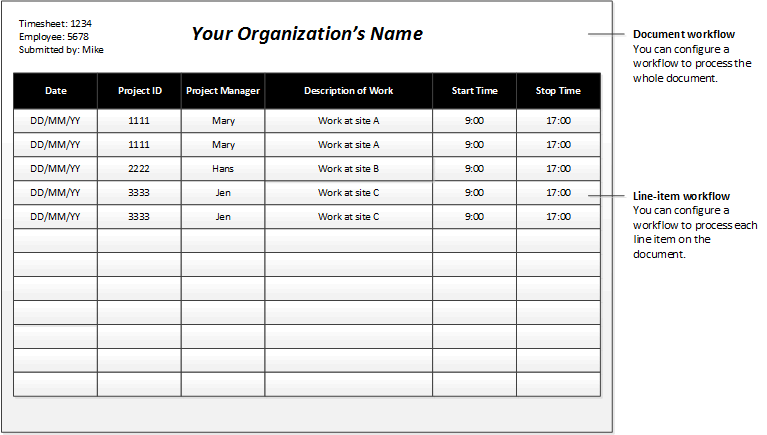
In this scenario, you might want to create the following line-item workflows:
- Line-item workflow 1 – Use this workflow to process line items where the project ID is 1111.
- Line-item workflow 2 – Use this workflow to process line items where the project ID is 2222.
- Line-item workflow 3 – Use this workflow to process line items where the project ID is 3333.
Flow-control elements
By using the following elements, you can design workflows that have alternate branches or branches that run at the same time.
Manual decision
A manual decision is a point where a workflow divides into two branches. A user must make a decision, and this decision determines which branch to use to process the submitted document.
Conditional decision
A conditional decision is a point where a workflow divides into two branches. The system decides which branch to use for processing the submitted document. To make this decision, the system evaluates the document to determine whether it meets specified conditions.
Parallel activity
A parallel activity is a workflow element that includes two or more workflow branches that run simultaneously.
Subworkflow
A subworkflow is a workflow that runs in the context of another workflow.