Note
Access to this page requires authorization. You can try signing in or changing directories.
Access to this page requires authorization. You can try changing directories.
Note
Community interest groups have now moved from Yammer to Microsoft Viva Engage. To join a Viva Engage community and take part in the latest discussions, fill out the Request access to Finance and Operations Viva Engage Community form and choose the community you want to join.
[This article is prerelease documentation and is subject to change.]
The production auto report scenario automatically reports finished quantities when a machine generates enough sensor signals to reach a defined output threshold. The scenario requires fitting the machine with a sensor that emits a signal for each production cycle, and mapping that sensor to the corresponding resource and operation in Supply Chain Management. By defining how many signals correspond to one finished unit, the system can automatically determine when progress should be reported and update the production order and inventory accordingly.
Prerequisites
To use the features described in this article, your system must meet the following requirements:
- You must be running Microsoft Dynamics 365 Supply Chain Management version 10.0.47 or later.
- The following features must be turned on in feature management.
- (Preview) Sensor Data Intelligence
- (Preview) Sensor Data Intelligence - Auto report progress
Set up the production auto report scenario
To set up the production auto report scenario, you need to define the sensors that are installed on the machines, map those sensors to the corresponding resources and operations in Supply Chain Management, and define thresholds for how many sensor signals correspond to finished units for each operation. Follow these steps to set up the scenario:
Go to Production control > Setup > Sensor Data Intelligence > Scenarios to open the Scenarios page.
In the Production auto report box, select Configure to open the setup wizard for this scenario.
On the Sensors page, select New to add a sensor to the grid. Then set the following fields for it:
- Sensor ID – Enter the ID of the sensor that you're using. (If you're using the Raspberry PI Azure IoT Online Simulator and have set it up as described in Set up a simulated sensor for testing, enter AssetDownTime.)
- Sensor description – Enter a description of the sensor.
Repeat the previous step for each sensor that you want to add now. You can come back and add more sensors at any time.
Select Next.
On the Business record mapping page, in the Sensors section, select the record for one of the sensors that you just added.
In the Business record mapping section, select New to add a row to the grid.
On the new row, set the Business record field to the resource that you're using the selected sensor to monitor.
Repeat the previous step for each sensor that you want to set up now. You can come back and set up more sensors at any time.
Select Next.
On the Set auto-reporting threshold page, select the operation relation you want your configuration to apply to. You can find a specific operation relation by following these steps:
- Select the Item relation column heading to open a drop-down dialog box that includes search filters for the column. Enter the product that the operation relation is created for.
- Select the Route relation column heading to open a drop-down dialog box that includes search filters for the column. Enter the route number that the operation relation is created for.
Tip
Each operation relation defines the detailed properties of an operation—such as setup time, run time, cost categories, and resource requirements—for a specific route or product. It lets each operation have several different properties depending on where it's used.
When you have found the applicable operation relation, enter values in the following columns for it:
- Pulses per cycle – Number of pulses the sensor emits in a production cycle.
- Units per cycle – Number of parts produced by the operation in a production cycle.
Tip
A production cycle is the smallest repeatable unit of work performed by a machine that produces a measurable output.
Set up more operation relations with their corresponding thresholds as needed. You can come back and set up more operation relations at any time.
Select Next.
On the Activate sensors page, in the grid, select the sensor that you set up, and then select Activate. For each activated sensor in the grid, a check mark appears in the Active column.
Select Finish.
Add counter displays to the production floor execution interface
To make counter information available to workers, add a button to the relevant toolbars on the production floor execution interface. Follow the procedure provided in Design the production floor execution interface to insert the action called View counter at suitable locations of the production floor execution interface UI.
View sensor counters in the production floor execution interface
Jobs configured for auto reporting through a sensor signal show a dedicated icon in the job list on the production floor execution interface, as indicated in the following image.
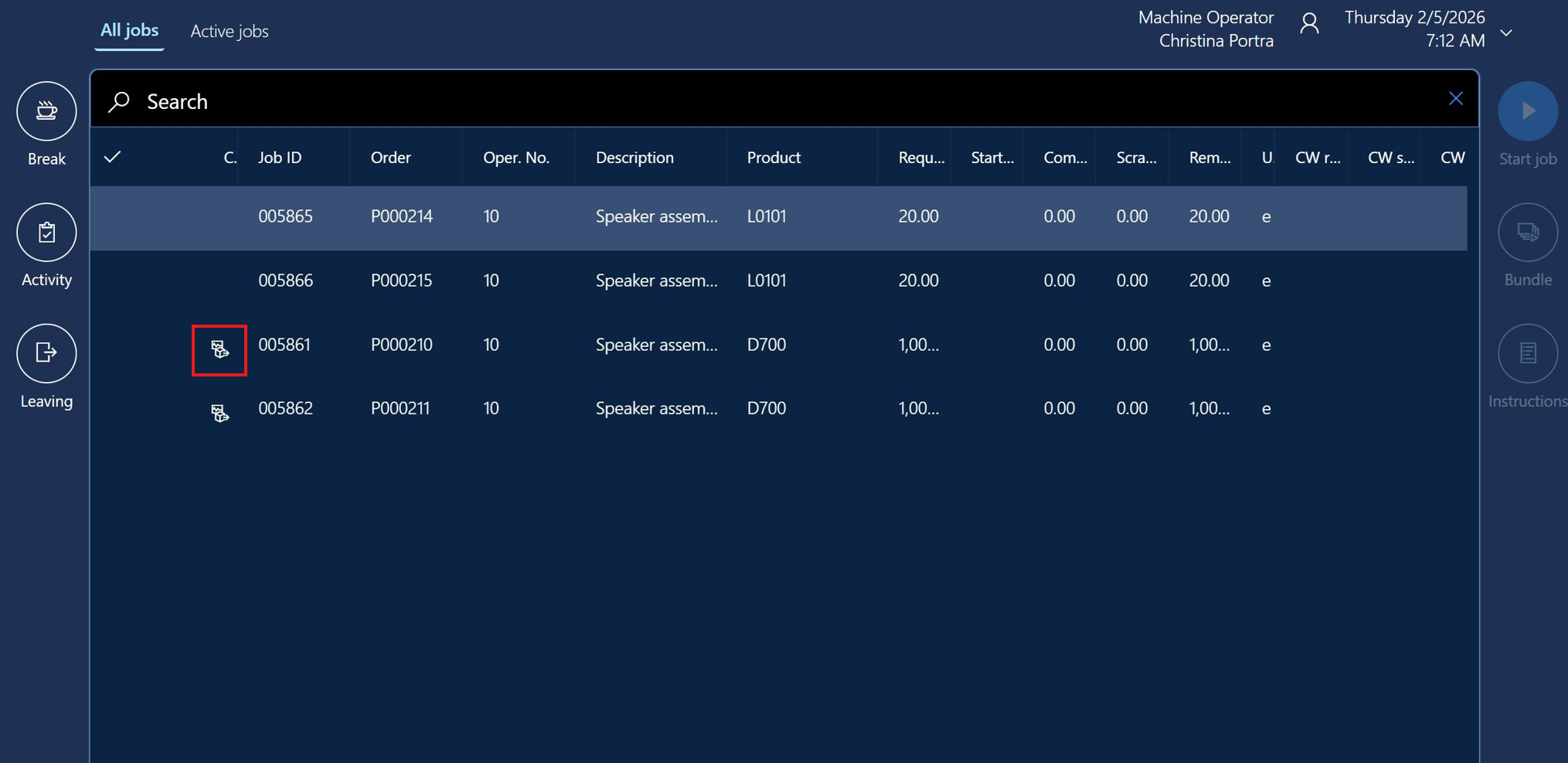
After you start a sensor-controlled job, you can open the View counter dialog by selecting View counter from the toolbar in the job list. As shown in the following image, the View counter dialog displays the current progress counters for the job.

Counters are shown in one or two levels. The number of levels depends on the Unit sequence group ID defined on the finished product. Learn more about how to set up unit sequence groups in: Unit of measure and stocking policies.
Example of counters in a two level setup
In the example View counter dialog shown in the previous image, the first‑level (left-hand) counter indicates how many pieces have been added to the box currently being filled. Each time a sensor signal is received, the level-1 counter (Pieces per box) increases. When the threshold of 12 pieces per box is reached, the level-1 counter resets to zero and the level-2 counter (Boxes per pallet) increases by one. When the level-2 threshold of 100 boxes per pallet is reached, the level-2 counter also resets to zero, indicating that a new pallet is ready to be filled. At this point, the system automatically reports a pallet as finished. The report as finished posting is processed through the message queue as an asynchronous (deferred) operation. Learn more about deferred posting in Make finished goods physically available before posting to journals.
Pausing signals and adjusting counters
If something unexpected happens, such as a dropped counter signal or a counted item that needs to be scrapped, you can pause the sensor signal and adjust the counters and report quantities as needed. Follow these steps to pause the signal, adjust counters, or adjust reported quantities:
Open the counter dialog by selecting View counter from the toolbar in the job list.
In the counter dialog, select the Pause signal button to pause the sensor signal. This allows you to report scrap, report progress, and adjust the counters without new signals coming in.
- If you need to adjust the counter values, use the + and – buttons below each counter as needed.
- If you need to report some counted quantity as scrap, select the Report scrap button. This action opens the Reporting as scrap dialog, where you can enter the quantity to be scrapped and the reason for scrapping.
- If you need to manually report progress (for example, because a sensor signal was missed), select the Report progress button. This action opens the Reporting progress dialog, where you can enter the quantity to report as finished.
Select the Start signal button to restart the sensor signal.
Navigating between multiple sensor enabled jobs
If multiple jobs in the job list are enabled for sensor controlled reporting, use the Previous and Next buttons of the View counter dialog to switch between jobs without closing the dialog.