Note
Access to this page requires authorization. You can try signing in or changing directories.
Access to this page requires authorization. You can try changing directories.
HTTP cookies are used to manage user sessions, store user personalization preferences, and track user behavior. Use the Cookies pane of the Application tool to view, edit, and delete the HTTP cookies for a webpage.
See also:
- Using HTTP cookies at MDN.
Detailed contents:
- Open the Cookies pane
- Fields
- Filter cookies
- Add a cookie
- Edit a cookie
- Delete cookies
- Identify and inspect third-party cookies
Open the Cookies pane
Go to a webpage, such Bing.com.
Right-click the webpage, and then select Inpsect.
DevTools opens.
In the Activity Bar, select the Application (
 ) tool.
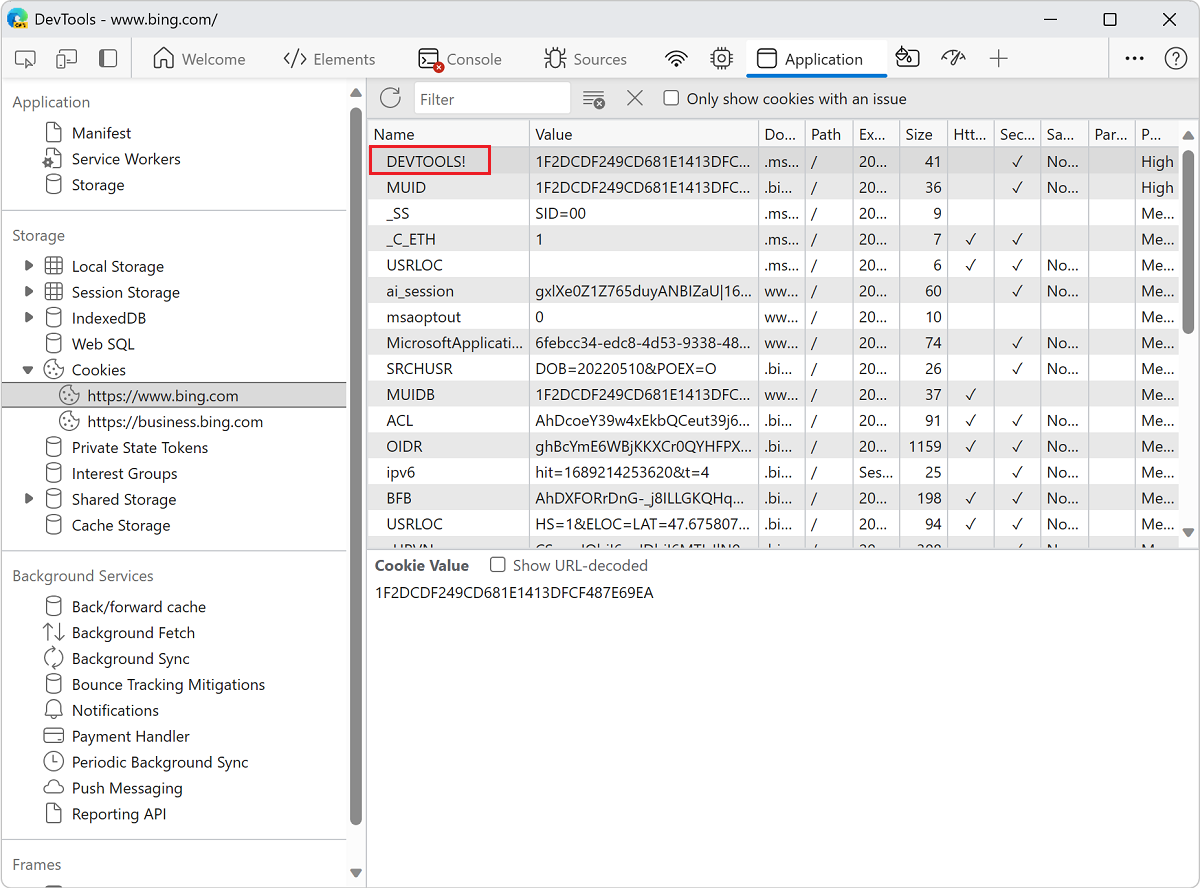
In the outline on the left, in the major Storage section, expand Cookies, then select an origin, such as https://www.bing.com:

Fields
The Cookies table contains the following fields:
Name. The name of the cookie.
Value. The value of the cookie.
Domain. The hosts that are allowed to receive the cookie. See Scope of cookies.
Path. The URL that must exist in the requested URL in order to send the
Cookieheader. See Scope of cookies.Expires / Max-Age. The expiration date or maximum age of the cookie. See Permanent cookies. For session cookies this value is always
Session.Size. The size, in bytes, of the cookie.
HttpOnly. If
true, this field indicates that the cookie should only be used over HTTP, and JavaScript modification isn't allowed. See HttpOnly cookies.Secure. If
true, this field indicates that the cookie must be sent to the server only over a secure, HTTPS connection. See Secure cookies.SameSite. Contains
strictorlaxif the cookie is using the experimental Samesite attribute.Partition Key Site. The partition key of a cookie only exists when the cookie is set in partitioned storage and corresponds to the top-level site where the cookie was initially created. See Cookies Having Independent Partitioned State (CHIPS) at MDN.
Cross Site. This attribute provides web developers a means to annotate cookies that are allowed to be set or sent in same-party, cross-site contexts.
Priority. Contains
low,medium(default), orhighif the cookie is using the deprecated Cookie Priority attribute.
Filter cookies
To filter cookies by Name or Value, use the Filter text box:

Filtering by other fields isn't supported. Filter is case-insensitive.
Add a cookie
To add an arbitrary cookie:
Open the Cookies pane, as described above.
In the empty row at the bottom of the table, double-click the Name column, enter a name for the cookie, and then press Enter.
In the Value column of that row, enter a value for the cookie, and then press Enter.

DevTools populates other required fields automatically. You can edit them as described next.
Edit a cookie
The Name, Value, Domain, Path, and Expires / Max-Age fields are editable. Double-click a field to edit it:
Delete cookies
To delete a specific cookie, click a cookie and then click Delete Selected ( ):
):

To delete all cookies, click Clear all cookies ( ):
):

Identify and inspect third-party cookies
Third-party cookies are those set by a site that's different from the current top-level page. Third-party cookies have the SameSite=None attribute.
View third-party cookies in the Application tool
To view third-party cookies:
Go to a webpage that uses third-party cookies, such as Bing.com, in a new window or tab.
Right-click the webpage, and then select Inspect.
DevTools opens.
Select the Application (
) tool.On the left, under the major Storage section, expand Cookies, and then select a website URL, such as https://www.bing.com.
Third-party cookies are indicated in the table by the presence of the value None in the SameSite column.

View blocked third-party cookies in the Application tool
Depending on your privacy settings, Microsoft Edge might prevent sites from using third-party cookies.
DevTools lists blocked third-party cookies in Application > Storage > Cookies and shows a ( ) icon next to them. Hover over the icon to see a tooltip. Details are below.
To view third-party cookies in the Application tool:
Go to a webpage that uses third-party cookies, such as Bing.com, in a new window or tab.
In Microsoft Edge, select Settings and more (
 ) > Settings > Privacy, search, and services.
The Edge Settings tab opens, showing the Privacy, search, and services page.
Select Cookies, and then turn on the Block third-party cookies toggle.
Switch back to the webpage's tab.
Right-click the webpage, and then select Inspect.
DevTools opens.
Select the Application (
) tool.Switch to the webpage window, such as Bing.com.
Refresh the page.
On the left, in the major Storage section, expand Cookies, and then select a website URL, such as https://www.bing.com.
In the table of cookies, scroll to a row that has an Information icon (
).Hover over the Information icon (
).A tooltip reads This attempt to set a cookie via a Set-Cookie header was blocked due to user preferences.

Stop blocking third-party cookies:
In Microsoft Edge, select Settings and more (
) > Settings > Privacy, search, and services.The Edge Settings tab opens, showing the Privacy, search, and services page.
Select Cookies, and then turn on the Block third-party cookies toggle.
View blocked third-party cookies in the Network tool
To view blocked third-party cookies in the Network tool:
Go to a webpage that uses third-party cookies, such as Bing.com, in a new window or tab.
In Microsoft Edge, select Settings and more (
) > Settings > Privacy, search, and services.The Edge Settings tab opens, showing the Privacy, search, and services page.
Select Cookies, and then turn on the Block third-party cookies toggle.
Switch back to the webpage's tab.
Right-click the webpage, and then select Inspect.
DevTools opens.
Select the Network tool.
Refresh the page.
The Name list displays more items.
In the Name list, scroll up to the topmost entry for the domain, such as the topmost www.bing.com entry, and then select it.
In the sidebar to the right, select the Cookies tab:

Select the Show filtered-out request cookies checkbox.
The Network tool highlights cookies that have issues, and shows an information (
) icon next to cookies that are affected (blocked), where third-party cookies are not available. For example, the information () icon might appear in the Domain column and Path column: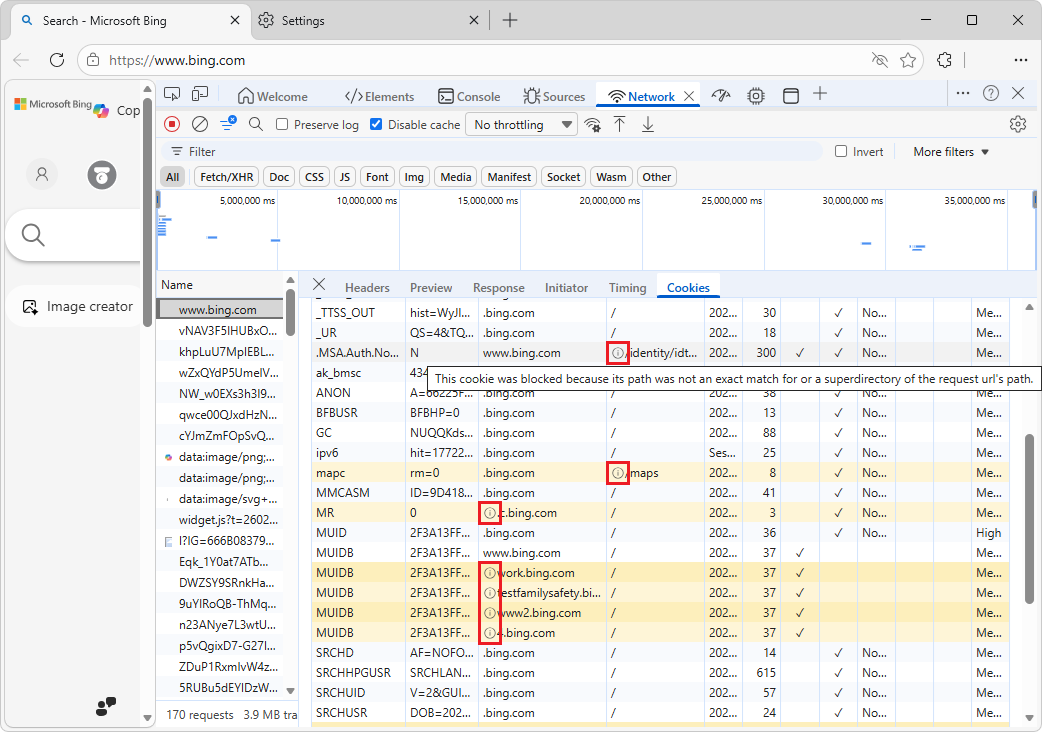
The tooltip in the Domain column reads, for example:
"This cookie was blocked because neither did the request URL's domain exactly match the cookie's domain, nor was the request URL's domain a subdomain of the cookie's Domain attribute value."
The tooltip in the Path column reads, for example:
"This cookie was blocked because its path was not an exact match for or a superdirectory of the request url's path."
Stop blocking third-party cookies:
In the Network tool, in the Cookies tab, clear the Show filtered-out request cookies checkbox.
In Microsoft Edge, select Settings and more (
) > Settings > Privacy, search, and services.The Edge Settings tab opens, showing the Privacy, search, and services page.
Select Cookies, and then turn off the Block third-party cookies toggle.
See also:
- Display cookies in Network features reference.
- Show only the requests with blocked response cookies in Network features reference.
Note
Portions of this page are modifications based on work created and shared by Google and used according to terms described in the Creative Commons Attribution 4.0 International License. The original page is found here and is authored by Kayce Basques.
 This work is licensed under a Creative Commons Attribution 4.0 International License.