Note
Access to this page requires authorization. You can try signing in or changing directories.
Access to this page requires authorization. You can try changing directories.
This article shows you how to create and manage resale enabled offers as an offer owner (software development company). You'll learn how to authorize resale partners and manage authorizations in Partner Center.
Overview of the resale enabled offers experience
- The offer owner authorizes a resale partner to sell their existing offer in specific geographies.
- The resale partner creates private offers using the resale enabled offer.
- The customer purchases through Microsoft Marketplace.
- Microsoft invoices the customer according to their billing terms with Microsoft.
- Microsoft pays the resale partner in accordance with our payout policies.
- The resale partner pays the software company outside of marketplace in accordance with their external agreements.
Prerequisites
Before you can create resale enabled offers, you must have:
- Enrollment in the Microsoft AI Cloud Partner Program
- A completed commercial marketplace account in Partner Center
- A valid payout and tax profile
- A publicly transactable software as a service (SaaS) or Azure VM with reservation pricing (VMSR) product
- A marketplace developer, manager, or account owner role associated with your Marketplace seller ID
Access the resale enabled offers dashboard
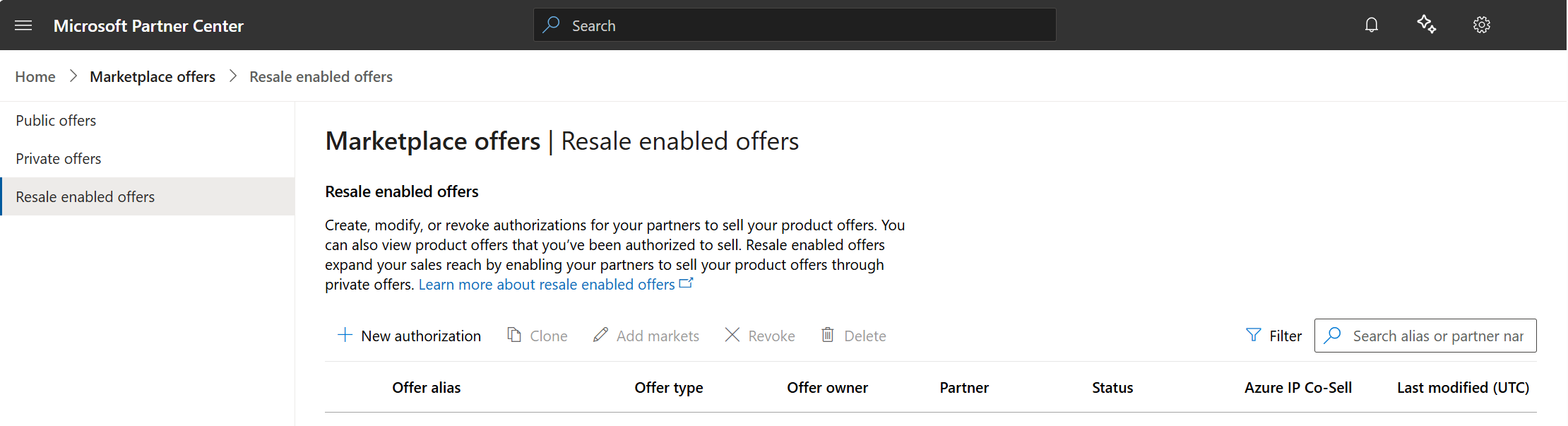
Use the resale enabled offers dashboard to view and manage your authorizations.
- Sign in to Partner Center.
- On the left menu, select Marketplace offers.
- Select Resale enabled offers.
From the dashboard, you can:
- Create new authorizations
- View the status of authorizations
- Search and filter authorizations
- Clone existing authorizations
- Add markets to existing authorizations
- Revoke authorizations
- Delete draft authorizations
Create a new authorization
To authorize a resale partner to sell your marketplace offer:
Select + New authorization" from the dashboard
+ Add offer: Select the offer you want to authorize from the list of eligible offers. The list is automatically populated with eligible SaaS and Azure VM offers that are associated with your Partner Center account.
Enter the resale partner's seller ID: Your resale partner can locate this information in their Partner Center account under Account settings > Identifiers > Publisher. After entering a seller ID, the partner's name and location will populate. You can only add one seller ID per authorization.
+ Add markets: Choose the customer markets you want to enable for the resale enabled offer. You can choose specific countries/regions or select all eligible countries/regions. After you submit, you can't remove markets from the authorization.
Important
The selected markets for your authorization are independent from the selected offer's geographic availability. Offer availability is set at the plan level when you publish your public offer. Work with your resale partner to ensure they're aware of any market exclusions for the selected offer.
Review your selections, then select Submit. You can also select Save to save the draft authorization or Cancel to return to the dashboard without saving your work.
After submission, the live authorization appears on the dashboard when you refresh the page. Your resale partner will be notified by email when the authorization is live.
View authorization details
To view the details of an existing authorization:
- On the Resale enabled offers dashboard, select the Offer alias link for the authorization you want to view.
- Review the authorization details, including partner information and enabled markets.
Your resale partners can also view read-only details of their authorizations from their Partner Center account.
Clone an existing authorization
To save time when creating similar authorizations, you can clone existing ones:
- On the dashboard, select the authorization you want to copy, then select Clone.
- Update the offer, resale partner information, or markets as needed.
- Select Submit.
Cloning creates a draft authorization with the same offer, partner, and market selections as the original.
Add markets to an authorization
To expand your resale partner's reach by adding new markets:
- Select the authorization from the list, then select Add markets.
- Choose the additional markets you want to enable for this authorization.
- Select Add.
- Review your changes and select Submit.
Note
You can only add markets to an authorization. To remove markets, you must revoke the authorization and create a new one.
Revoke an authorization
To prevent a resale partner from creating new private offers with your product:
- Select the authorization from the list, then select Revoke.
- In the confirmation dialog, select Revoke to complete the action.
Note
Revoking an authorization only prevents new private offers. Existing private offers that were already submitted or purchased continue through the duration of their contracts.
Delete a draft authorization
To remove an authorization that hasn't been submitted yet:
- Select the draft authorization from the list.
- Select Delete.
- Confirm the deletion in the dialog.
You can only delete authorizations that are in draft status and haven't been submitted yet.
Reporting for resale enabled offers
You can view data about resale enabled offers in the Microsoft marketplace insights section of the Insights workspace in Partner Center. Use the Resale partner filter on the Orders and Usage dashboards to filter data. These dashboards also include a Resale partner column, which is included in the Details table and in report downloads.
Note
As an offer owner, you won't see pricing information for private offers sold through resale enabled offers.