Note
Access to this page requires authorization. You can try signing in or changing directories.
Access to this page requires authorization. You can try changing directories.
[This article is prerelease documentation and is subject to change.]
Model-driven apps support the use of agents to enhance user productivity and automate tasks. There are two types of agents available in model-driven apps:
Autonomous agents, created in Microsoft Copilot Studio, collaborate with users through the new Power Apps model context protocol (MCP) server, allowing agents to generate actionable agent feed tasks for users to review results or step in with inputs to unblock and complete human‑in‑the‑loop flows.
App assistant agents, which can be created to provide custom topics, knowledge sources, and more within the model-driven app.

Important
- This is a preview feature.
- Preview features aren't meant for production use and might have restricted functionality. These features are subject to supplemental terms of use, and are available before an official release so that customers can get early access and provide feedback.
- This feature is available only in the English language and it replaces the earlier Microsoft Copilot Studio activity-based agent feed.
- For information about how AI is used with this feature, go to FAQ about Power Apps MCP server invoke_data_entry tool.
Autonomous agents can be added to model-driven apps to help users get work done faster. Using the Power Apps MCP server, agents can post actionable tasks for user review, allowing humans to validate results, step in when needed, and finish work the agent couldn’t complete—without leaving their app.
Learn more about how to supervise agents
Note
Access to the agent feed and supervision capabilities is limited by default to the System Administrator and System Customizer roles. To allow additional users to view the agent feed, grant organization‑level read/write permissions on the entities listed below. You can create a new security role with these permissions and assign it to multiple users as needed.
- Agent Hub Goal(agenthubgoal)
- Agent Hub Insight(agenthubinsight)
- Agent Hub Metric(agenthubmetric)
- Agent Task(agenttask)
- Copilot(bot)
Supervise an autonomous agent within the app
The enhanced agent feed is powered by the autonomous agents using the Power Apps MCP server. Power Apps MCP sever tools enable these two core human‑agent collaboration patterns:
- Autonomous Microsoft Dataverse record creation and updates with human‑in‑the‑loop review.
- Agent requests for human assistance and logging tasks for human review.
In agent‑enabled apps, user focus shifts from doing the work to supervise and prioritize agent‑driven work. Agents help with automation and organization of work, ensuring business experts remain involved in decision‑making and critical actions. You can supervise elligible autonomous agents with any model‑driven app. We recommend adding agents to apps that contain functionality or data relevant to the agent’s intended purpose.
Terminology
| Term | Description |
|---|---|
| Agent | The customer’s custom autonomous agent. |
| Task/Agent task | A single request for human assistance or human review within an agentic workflow. |
| Agent feed | The system for surfacing agent tasks to the user. |
| Agent canvas | The UX surface where users provide the requested human input or observe task details. |
| Power Apps MCP server | The collection of tools available to agents for interacting with capabilities of the business app platform. |
Note
To be eligible for addition to an app, an agent must be connected to Power Apps MCP server or be in a published state. A maker can verify an agent's eligibility to be added to an app via the right-hand properties pane where the requirements for an agent to be added to an app are displayed and includes a Power Apps MCP Server status as Connected. The Add to feed button is disabled for any agents that don't meet the requirements to be eligible for addition.

Create an autonomous agent connected to Power Apps MCP server
MCP is an open protocol that enables seamless integration between large language model (LLM) applications and external data sources and tools. Your agent can use the Power Apps MCP server to communicate with your apps in Power Apps, providing right human-in-the-loop supervision or agentic workflows. To use the Power Apps MCP server, you need to enable and configure the MCP server with an agent. More information: Work with Power Apps MCP server
Sign in to Power Apps, select Apps, and then select Edit for the app you want to modify.
In the app designer, go to the Agents tab on the left navigation pane.
Select Create agent.
Microsoft Copilot Studio opens in the new tab.
Enter the name and description and scroll to tools and select Add tool.

Search for Power Apps MCP Server and select it.
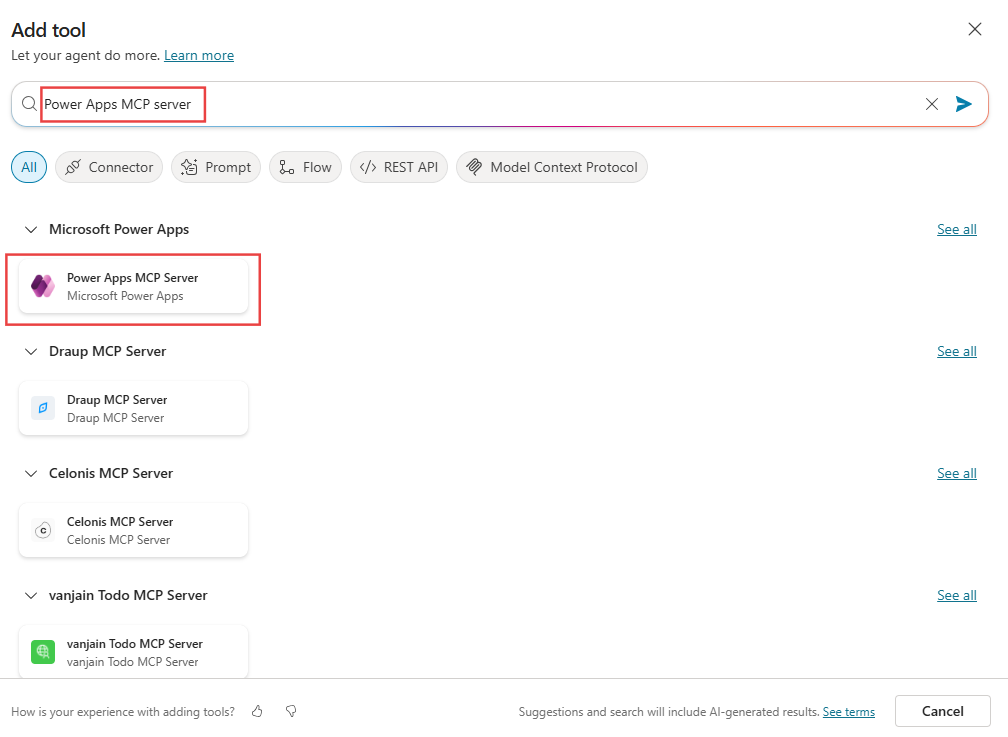
Select Add and configure to connect the agent to Power Apps MCP tools.

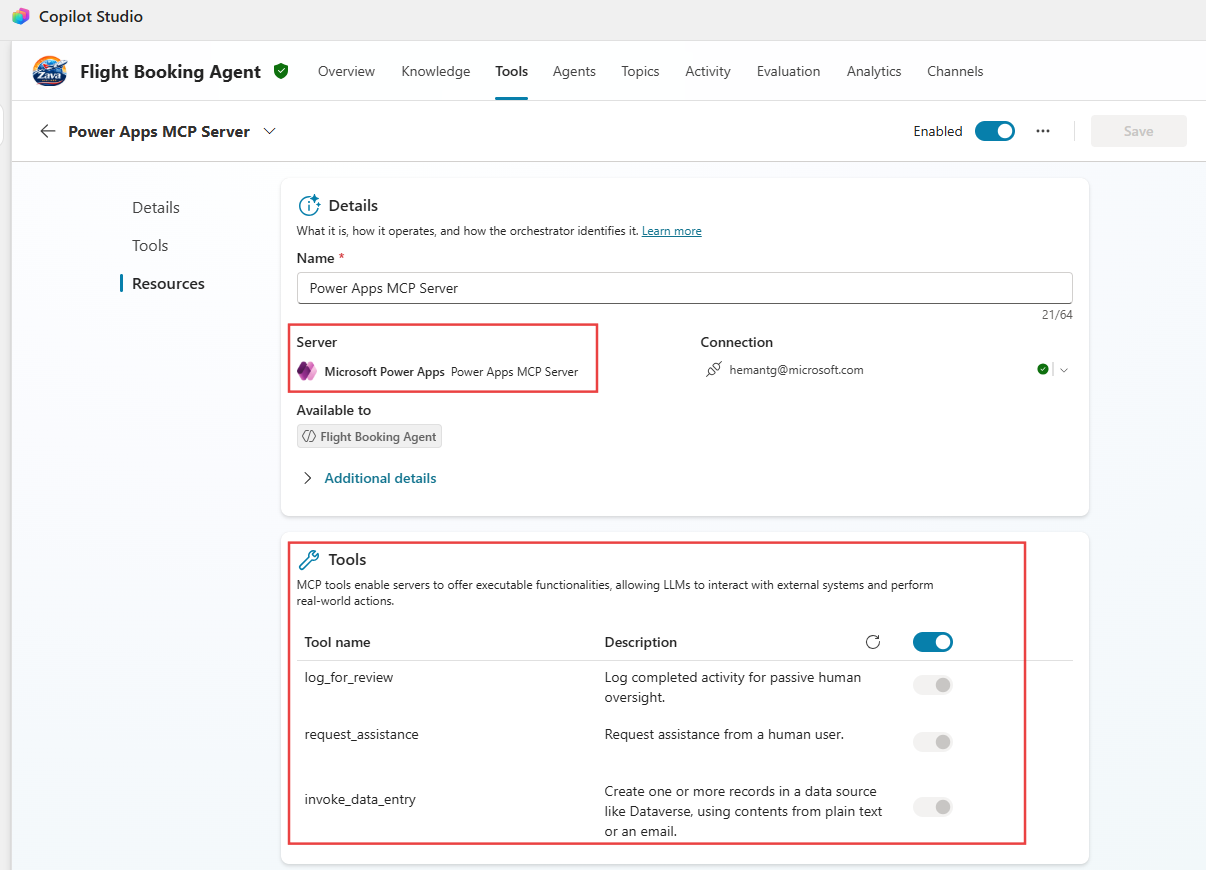
Notice the tools available to use with your agent. You can select to enable the tools you want. For information about these tools go to Work with Power Apps MCP server.
Add a trigger for this autonoumous agent so that it is invoked when the trigger is fired. In this example, the trigger When a row is added, modified, or deleted is selected for the Dataverse Booking table.

The agent is ready to use the Power Apps MCP server tools. This image shows how the agent can add a task for human review using natural language instructions. Internally, the task invoked maps to the Power Apps MCP server tp log_for_review tool.

When a new booking record is created, it triggers the agent, which adds the review task in the agent feed Completed tab.

Current limitations
- Only model-driven Power Apps support agent supervision. This feature isn't available for canvas or vibe apps.
- Power Apps MCP server is supported only via Microsoft Copilot Studio.
Add an autonomous agent to an app
- Sign in to Power Apps, select Apps, and then select Edit for the app you want to modify.
- In the app designer, go to the Agents tab.
- Under the Agent feed dropdown, the In your environment dropdown appears that lists all agents in your environment. Locate the agent you want to add.
- Select ... (more options) next to the agent, and then select Add to feed.
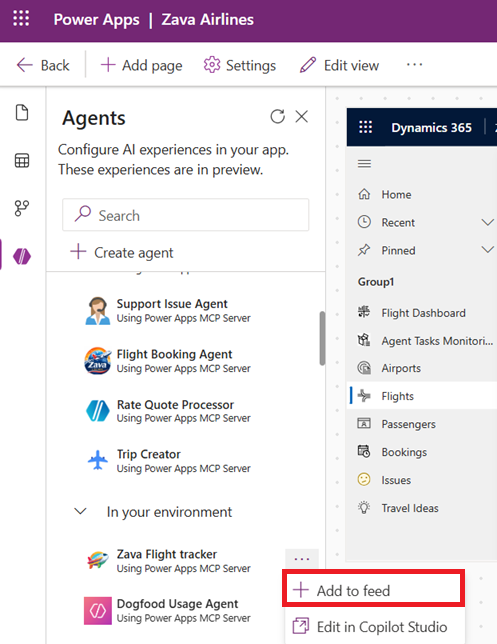
- Verify agent feed is added to your app with all added agents by saving, publishing, and playing your app. Previewing agent feed in the app designer isn't currently supported.
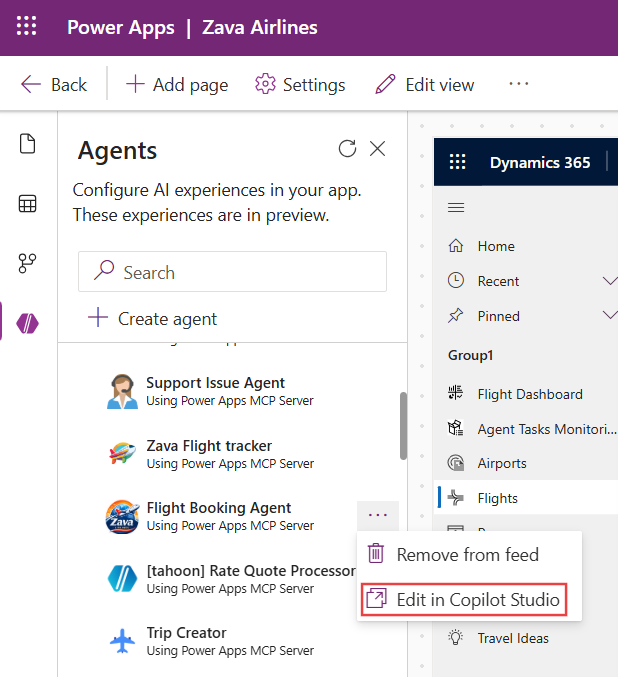
- To view or edit the agent in Copilot Studio, select Edit in Microsoft Copilot Studio.
Important
Use the Create agent button to open Copilot Studio for agent creation. Note that even if the agent is created through a link inside the app designer, the maker must ensure it meets all requirements to be added to the app.
Remove an autonomous agent from an app
In the app designer, go to the Agents tab.
In the Agent feed dropdown, select In your feed.
Locate the agent you want to remove, select ..., and then select Remove from feed.

Note
Removing an agent from an app doesn't remove the agent from the environment.
Working with an app assistant agent
The app assistant agent makes a model-driven app more intelligent and relevant for your organization by adding additional topics, knowledge sources, and more. The Copilot Chat, Agent APIs, and agent response components access the topics within this agent. Learn more: Add app assistant agent

Note
The app assistant agent is a rename of interactive agent, which is the improved experience for ... > Configure in Copilot Studio. The agents created with the previous experiences are now shown as the App assistant agent.