Note
Access to this page requires authorization. You can try signing in or changing directories.
Access to this page requires authorization. You can try changing directories.
GitHub Copilot completions and GitHub Copilot Chat in Visual Studio enable enhanced AI-assisted development in Visual Studio, helping you be more productive and efficient when you write code.
In this article, you learn about using Copilot Chat in Visual Studio, a fully integrated AI-powered chat experience from GitHub Copilot within the Visual Studio IDE. With the extension, you get coding information and support, such as syntax, programming concepts, context-specific code help, test cases, debugging, and more, without leaving the IDE. Use the chat interface to submit your question as a prompt and set intent for better scoped answers.
For more information on the GitHub Copilot completions in Visual Studio, see About GitHub Copilot completions for Visual Studio.
Why use Copilot Chat in Visual Studio?
Copilot Chat provides AI assistance to help you make informed decisions and write better code. With tight integration in Visual Studio, Copilot Chat understands what you're working on and can help you with development tasks like:
- Code explanations. Get in-depth analysis and explanation of how a code block works.
- Code help. Get answers to programming-related questions in natural language or code snippet format.
- Code refinement. Get context-specific code suggestions and recommendations.
- Unit testing. Generate unit tests.
- Profiling. Optimize code performance.
- Debugging. Find issues and get proposed fixes to bugs and exceptions.
- Review and commit code. Generate commit messages and review local changes.
Prerequisites
Visual Studio 2022 version 17.8 or later.
Sign in to Visual Studio using a GitHub account with Copilot access. You can use GitHub Copilot for free.
Get GitHub Copilot Chat for Visual Studio
If you use Visual Studio version 17.10 or later, GitHub Copilot Chat is included in the unified GitHub Copilot experience. The extension is available as a recommended component in the Visual Studio Installer. Copilot Chat is installed by default with all workloads, unless you choose to exclude it during installation.
GitHub Copilot isn't included in Visual Studio Subscriptions. Instead, it's a separate subscription managed by GitHub. For questions regarding GitHub Copilot subscriptions and support, see the GitHub pages for business subscriptions and individual subscriptions.
Use Copilot Chat in Visual Studio
You can ask your coding related questions in natural language. GitHub Copilot Chat answers these questions in your development context.
There are two places you can ask Copilot these questions: in a chat window, or with inline chat in the code that you want to modify. If your goal is to modify or add to the code file you have open in the editor, the inline chat view usually works best. For more general coding questions, the chat window is the better option.
To get better answers with scoped context in Copilot Chat, see the tips to improve Copilot chat results. You can learn how to use slash commands, references, sources used, and threads.
Note
Content exclusion is available for GitHub Copilot Chat. Content excluded by your admin is ignored in responses from chat. For more information, see Configuring content exclusions for GitHub Copilot.
Ask questions in the chat window
Ask your questions and see answers in the chat window. We recommend this tool for programming help and general coding questions.
In Visual Studio, select View > GitHub Copilot Chat.
In the chat window, type a coding related question in the Ask Copilot text box. Select Enter or select Send to ask your question.

If Copilot Chat offers a code suggestion that you want to use, you have the following options. Select Copy code block to copy the code suggestion, Add to new file to insert the code suggestion in a new file, or Apply to insert the code suggestion in your current code file. If you select Apply, you can preview the code in the target location so you can easily see what's being updated.
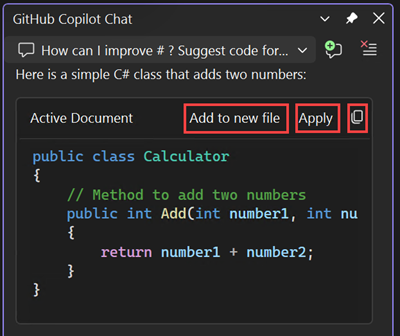
If you ask a question for help with understanding your code, the Copy code block and Insert in new file options isn't available.
If you choose to add the changes to the current file, you see the code suggestions in the normal diff view pattern. You can review and refine what's being proposed, and apply to your code by selecting Tab, or discard by selecting Esc.

If you select Add to new file, you see the code suggestions in a new file. The changes aren't saved by default.

The code referencing feature in GitHub Copilot notifies you when suggestions match public code. You can view the matching code, its source file, and any associated licensing information directly within Visual Studio. You can then make more informed decisions about whether to use the suggested code.


Ask questions in the chat window
Ask your questions and see answers in the chat window. We recommend this tool for programming help and general coding questions.
In Visual Studio, select View > GitHub Copilot Chat.
In the chat window, type a coding related question in the Ask Copilot text box. Select Enter or select Send to ask your question.

To start exploring GitHub Copilot Chat, use the example starter prompts and the prompt library (book icon) in Visual Studio 2022 version 17.12 and later.
If Copilot Chat offers a code suggestion that you want to use, you have the following options. Select Copy code block to copy the code suggestion, Insert in new files to insert the code suggestion in a new file, or Preview to insert the code suggestion in your current code file. If you select Preview, you can preview the code in the target location so you can easily see what's being updated.

If you ask a question for help with understanding your code, the Copy code block and Insert in new file options aren't available.
If you select Preview, you see the code suggestions in normal diff view pattern in Visual Studio. You can review and refine what's being proposed, and apply to your code by selecting Accept, or discard by selecting Cancel.
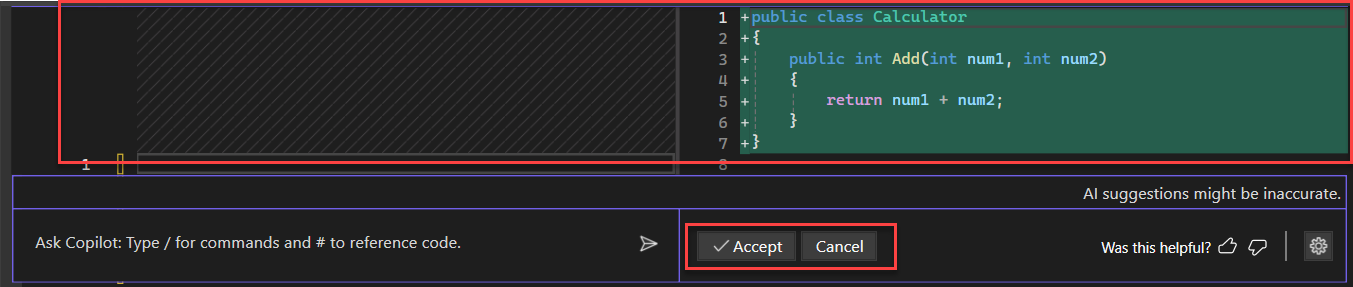
If you select Insert in new file, you see the code suggestions in a new file. The file isn't saved by default.

Visual Studio 2022 version 17.12 now includes code referencing in GitHub Copilot. This feature in GitHub Copilot notifies you when suggestions match public code. You can view the matching code, its source file, and any associated licensing information directly within Visual Studio. You can then make more informed decisions about whether to use the suggested code.


Ask questions in the inline chat view
You can ask your questions and see answers inline with the code in the editor window itself. With inline chat, you don't have to go back and forth to the chat window. We recommend this method to work with Copilot on questions that add to or update a currently open code file.
In Visual Studio, to bring up the inline chat view of Copilot Chat in the editor itself, right-click in your editor window and select Chat.

Type your coding related question in the Ask Copilot text box, and then select Enter or select Send to ask your question.

You see code suggestions from Copilot Chat in the diff view. You can review and refine what's being proposed. To apply the suggestions to your code, select Tab. To discard the suggestions, select Esc.

You can promote your inline chat thread to the chat window by selecting Copilot Actions > Add to Chat. This feature preserves the record and context of your conversation, and you can continue in the chat window.

Close the inline chat view by selecting Esc.


In Visual Studio, to bring up the inline chat view of Copilot Chat in the editor itself, right-click in your editor window and select Ask Copilot.

Type your coding related question in the Ask Copilot text box, and then select Enter or select Send to ask your question.

You see code suggestions from Copilot Chat in the diff view. You can review and refine what's being proposed. To apply the suggestions to your code, select Accept. To discard the suggestions, select Cancel.

You can promote your inline chat thread to the chat window by selecting Continue in chat window. This feature preserves the record and context of your conversation, and you can continue in the chat window.

Close the inline chat view by selecting Esc.


Attach images to chat prompts
With Visual Studio 17.14 and later, you can attach images in chat to add contextual input and generate better responses.
To attach an image to a prompt, paste an image from the clipboard or select the ➕ icon in the chat input. Then select Upload Image to upload an image from File Explorer. Copilot analyzes the image and uses it as more context to generate a better response.

This feature can be handy when Copilot is helping you with UI development (for example, you attach an image of your design). The feature is also useful for debugging (for example, you attach a screenshot of the error).
Use any of the following image formats: PNG, JPEG, and GIF (single-frame only). You can attach up to three images per prompt.
Preview Markdown content
You can preview any Markdown content generated by Copilot Chat directly in the Visual Studio Markdown editor.

When Copilot Chat generates Markdown content, select the Preview button at the upper-right corner of the chat window to see a rendered preview. From there, you can edit and save the Markdown content as needed. This feature is helpful when you want to quickly visualize and work on Markdown files without manually copying and pasting.
Generate Mermaid diagrams
Copilot Chat can generate various Mermaid diagrams, including architectural, flowchart, sequence, class, Gantt, and pie charts. You can then visualize complex data structures and workflows directly in the editor.
For example, you might use one or more of the following prompts:
- "Create a sequence diagram for the API call flow."
- "Visualize relationships between entities in this schema."
- "Create a Mermaid state diagram for the lifecycle of a task."
- "I'm new to this project, visualize major components and their relationships to help me onboard."

Copilot uses attached references and related files in your codebase to gather context, and then returns the Mermaid syntax in the chat window. Select Preview to open a new Markdown file and view the diagram. You can save or share the Markdown or rendered chart for future use.

Tip
You can use the Markdown preview controls to switch between preview modes and zoom in on complex Mermaid diagrams.