Note
Access to this page requires authorization. You can try signing in or changing directories.
Access to this page requires authorization. You can try changing directories.
In this article, you learn how to copy data from your Azure Managed Lustre file system to long-term storage in Azure Blob Storage by creating an export job.
You can initiate an export job and monitor the job's progress and status in the Azure portal. Export jobs copy new or changed files from the file system to the blob container that you specified when you created the file system.
Note
Export jobs are available only when you integrate Azure Blob Storage with your Azure Managed Lustre file system during file system creation. For more information, see Azure Blob Storage integration. If you didn't integrate a blob container when you created the file system, you can use client file system commands to copy the data without creating an export job.
Create an export job
Follow these steps to create an export job in the Azure portal:
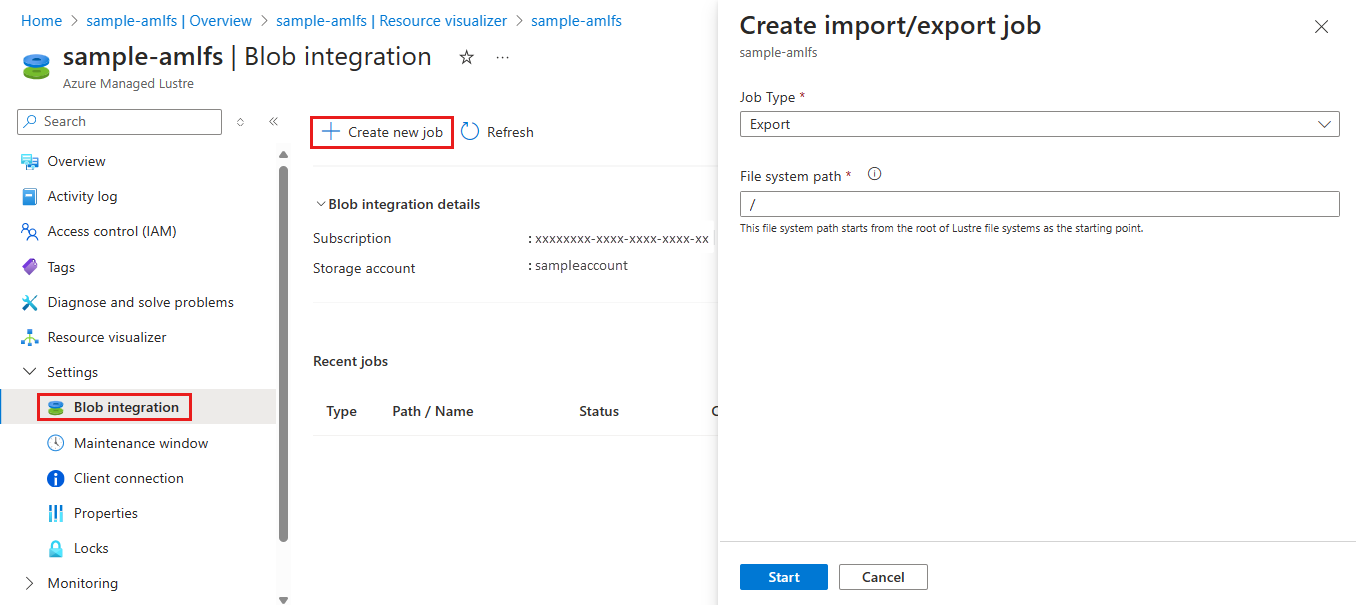
In the Azure portal, open your Azure Managed Lustre file system. Under Settings, select Blob integration.
Select + Create new job.
In the Job Type dropdown menu, select Export.
In the File system path field, you can enter a string to specify what you want to export.
All new or changed files in the file system whose file names begin with this string are exported. Files are written to the blob container with the same file path (or prefix) that they have in the Lustre file system. To avoid overwriting existing files in the blob container, make sure the path of the file in your Lustre file system doesn't overlap the existing path of the file in the blob container.
The following screenshot shows the configuration settings for an export job in the Azure portal.
Monitor or cancel an export job
You can monitor or cancel export jobs in the Recent jobs section of the Blob integration pane.
Only one archive job runs at a time. To cancel the job that's in progress, select the Cancel link for that job in the Recent jobs table. The Cancel link isn't available for completed jobs.
Retry an export job
If an export job doesn't finish successfully, you can retry the export by creating a new export job. The new job copies only the files that weren't copied during the previous job.
Retries can be common when you attempt to export data from active file systems where data is frequently changing. To learn more about these scenarios, see Run export jobs in active file systems.
Related content
- Learn more about Azure Blob Storage integration with Azure Managed Lustre file systems.