Note
Access to this page requires authorization. You can try signing in or changing directories.
Access to this page requires authorization. You can try changing directories.
[This article is prerelease documentation and is subject to change.]
Agent feed enables human-agent collaboration in apps by surfacing agent-generated, actionable tasks that users can review, validate, and complete. By using agent feed, apps act as a collaboration surface where users supervise and interact with agent work through a unified, task-based feed.
Prerequisites
- The agent feed shows when at least one agent is supervised in the app.
- Learn how to Add agents to an app.
Important
- This is a preview feature.
- Preview features aren't meant for production use and might have restricted functionality. These features are subject to supplemental terms of use, and are available before an official release so that customers can get early access and provide feedback.
- This feature is being gradually rolled out across regions and might not be available yet in your region.
- This feature is only available in English language and replaces older Microsoft Copilot Studio activity-based agent feed version.
Note
Currently, all users who have access to the Agent Task table can see agent feed items in apps. To prevent unintended exposure, don't configure agents to log tasks targeted at specific users.
Use agent feed to supervise agents
The enhanced agent feed is powered by the autonomous agents using Power Apps MCP server. Power Apps MCP server tools enable following two core human‑agent collaboration patterns:
- Autonomous Dataverse record creation and updates with Human‑in‑the‑Loop review.
- Agent requests for human assistance and logging tasks for human review. In agent‑enabled apps, user focus shifts from doing the work to supervising and prioritizing agent‑driven work. Agents help with automations and organize work, ensuring business experts remain involved in decision-making and critical actions.
To allow users to view an agent's activity in the app, the agent must connect to Power Apps MCP server. The agent feed appears at the top of the site map in an app.

You can view the feed in the side pane or expand it to full screen.
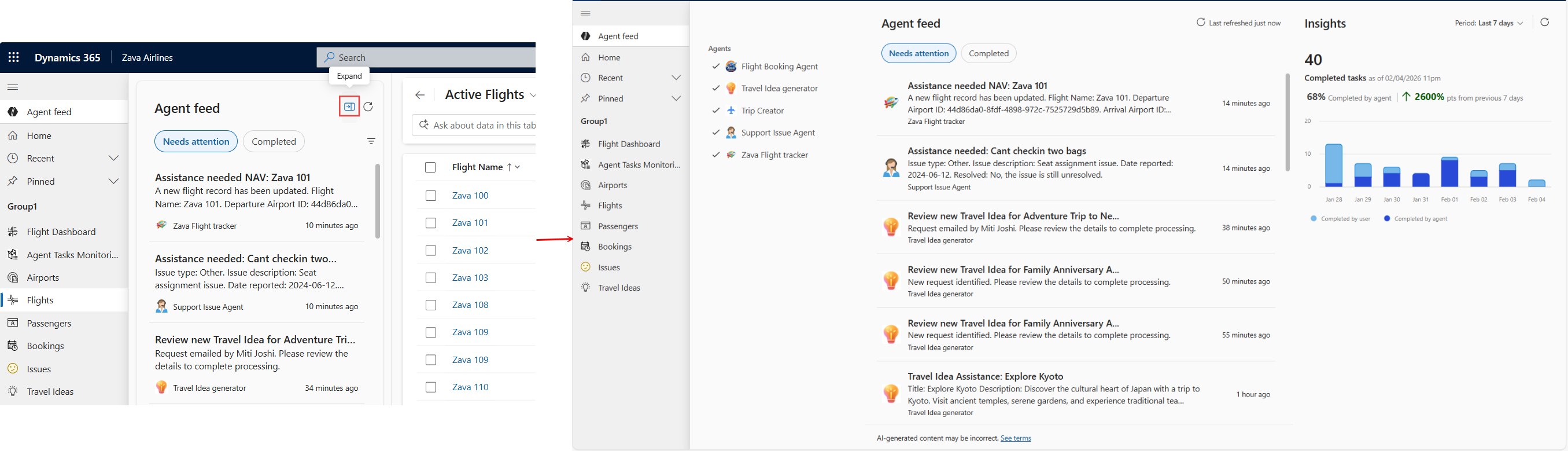
The feed shows a list of agent tasks. Each item can include:
- Title of the task
- Description of the tasks with optional steps
- The agent's name and icon
- A timestamp of when the task was logged
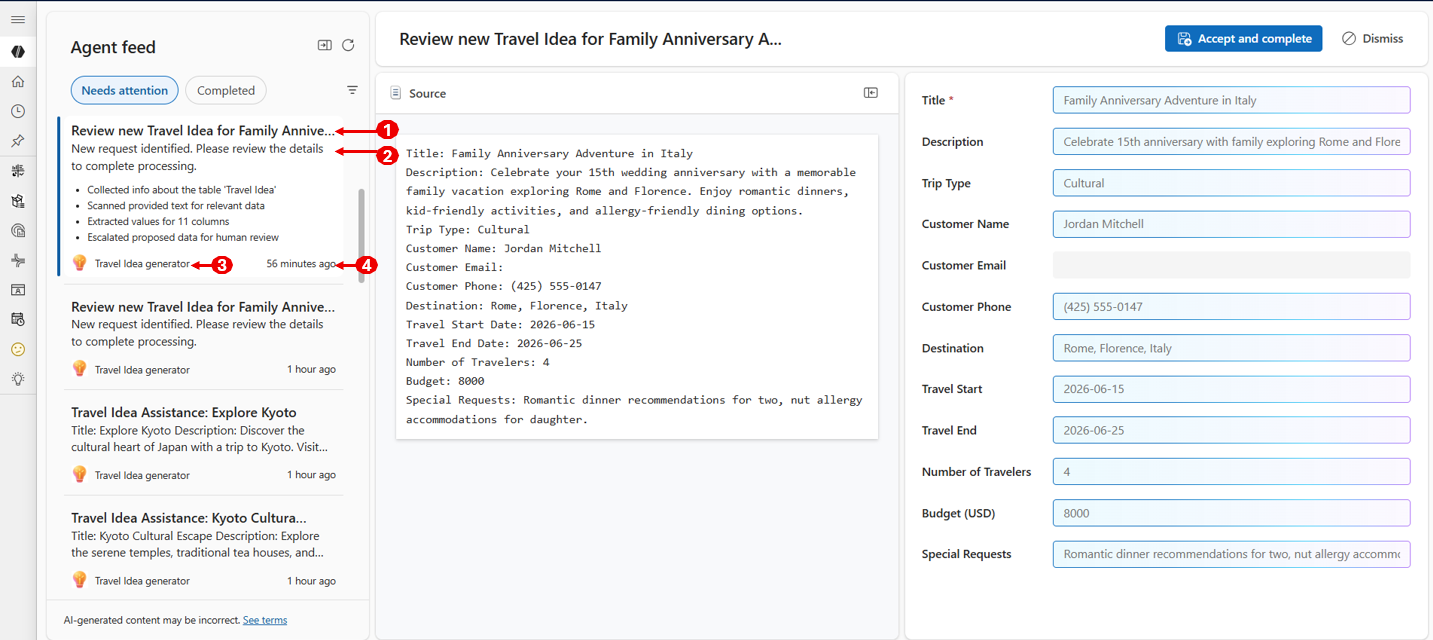
Activity is grouped into two sections:
- Needs Attention: Shows tasks that are waiting for your input or need your attention. These tasks are logged by using the
request_assistanceorinvoke_data_entryMCP tools. - Completed: Displays all other agent feed tasks, including tasks the user completed and tasks the agent completed that are logged for review by using the
request_reviewMCP tool.
By default, each section loads 20 agent tasks and lazy loading is enabled as you scroll. The sections are sorted chronologically by the last modification date of each action.
You can filter the feed by agents.

View the agent feed in a side pane to support multitasking or expand it to full screen for focused review.
Take action on agent activity
Take these actions on tasks under the needs attention tab in agent feed:
Complete: Move a task from the needs attention section to Completed after completing the task the agent couldn't finish. This action is available for the agent tasks logged by using the request_assistance mcp tool.

Accept and complete: Move a data entry task from the Needs attention section to Completed after reviewing and accepting the data entry suggestions from invoke_data_entry mcp tool. The Accept and complete button is available inside the agent pane associated with the agent feed task.
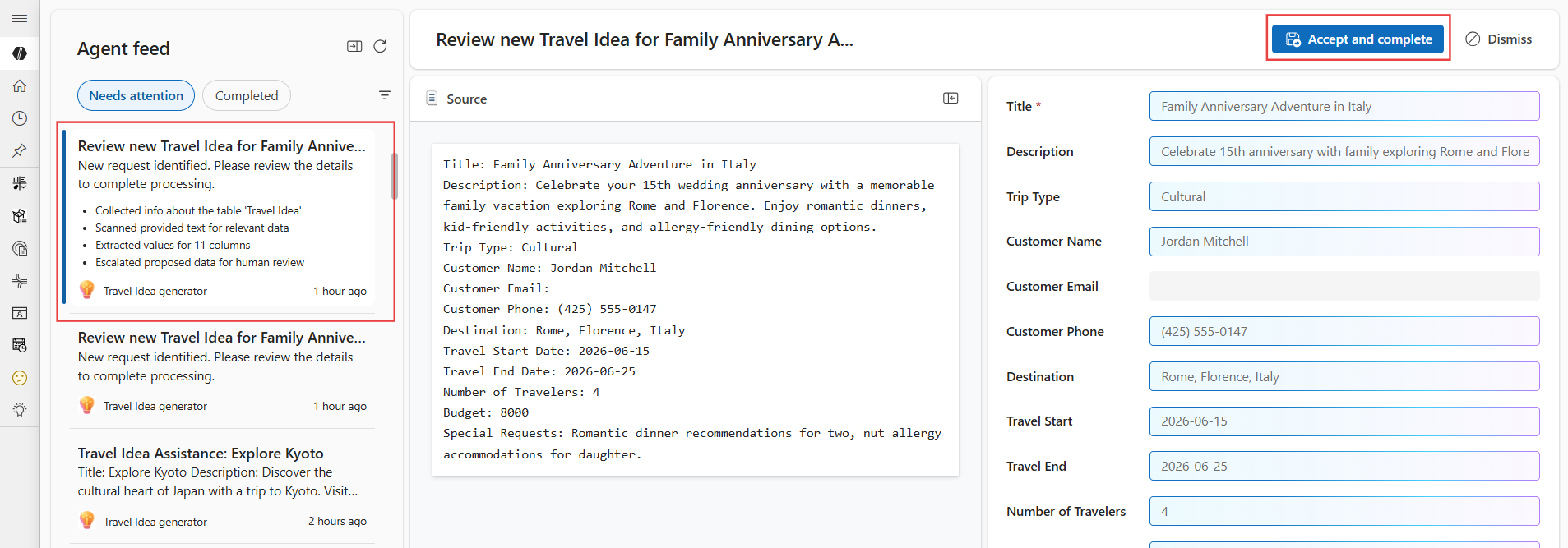
Dismiss: Remove a data entry task logged via invoke_data_entry mcp tool from the Needs attention section if it's no longer relevant. The Dismiss button is available inside the agent pane associated with the agent feed task.


Note
You can perform all actions either from the main screen in the feed or from the details page of a specific action.
- Request_review tasks: Tasks logged via request_review mcp tool don't have any actions for the users. They're informational tasks completed autonomously by agent and can be found in completed agent feed tab.

Navigation from agent feed item
Agent feed tasks generated through the request_assistance or request_review MCP tools can reference a Dataverse record as a related navigation link in the agent description. This reference allows users to easily open and review associated data when interacting with the feed item.

Insights panel
The default insights panel complements the agent feed by giving users a clear, aggregated view of how their agents and users collaborate over time. While the agent feed surfaces individual tasks and actions in the moment, the Insights chart provides a historical, high‑level representation of those interactions. This representation helps organizations understand the true patterns of human–agent collaboration, whether users step in to provide missing context, guide agents through a complex workflow, complete tasks directly, or monitor agent activity. By visualizing these trends over time, organizations gain transparency into how their agentic workflows actually operate in practice, strengthening trust, identifying friction points, and revealing opportunities to improve system reliability and user experience.

The insights chart presents aggregated activity across the last 7, 14, or 30 days. It gives customers a time‑based snapshot of collaboration between agents and users. Activity is categorized into two groups:
- Tasks completed by agents
- Tasks completed by users These at‑a‑glance aggregations offer a concise understanding of collaboration volume and balance over time. They help teams quickly assess how work is distributed across human and agent participants.